Open a component in Boss’nX and read its datapoint values
Boss’nXUserAdministratorInstaller
Boss’nX, supervision or hypervision: component detail opened from its zone, commands depending on rights
The detail of a Boss’nX component shows all its accessible datapoints: values and units, states, commands. Open it from its zone to read a measurement, interpret an N/A or Write-only display, or spot a KNX object that is not installed yet.
Intended for users, administrators and installers signed in to a supervision, including from the hypervision. Your account determines which components and datapoints are visible, as well as the commands you can use. To search for a component without going through its zone, use the Components list and filters.
Open the detail from a zone
Section titled “Open the detail from a zone”-
Choose Building, By floor tab, then open the component’s zone, as described in viewing a zone.
-
In its card, click the component name or the View details icon, at the top right.
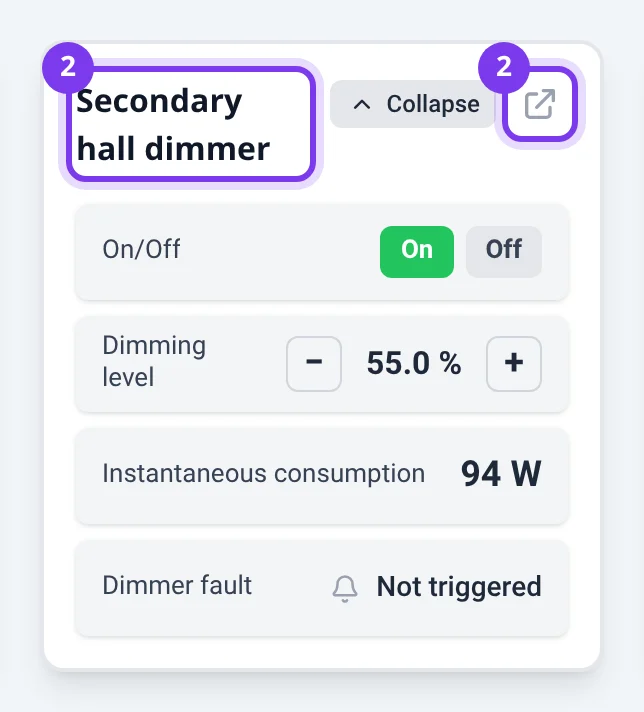
-
Check the component name in the page title.
-
Browse its datapoints in the large central card. Some datapoints are visually grouped.
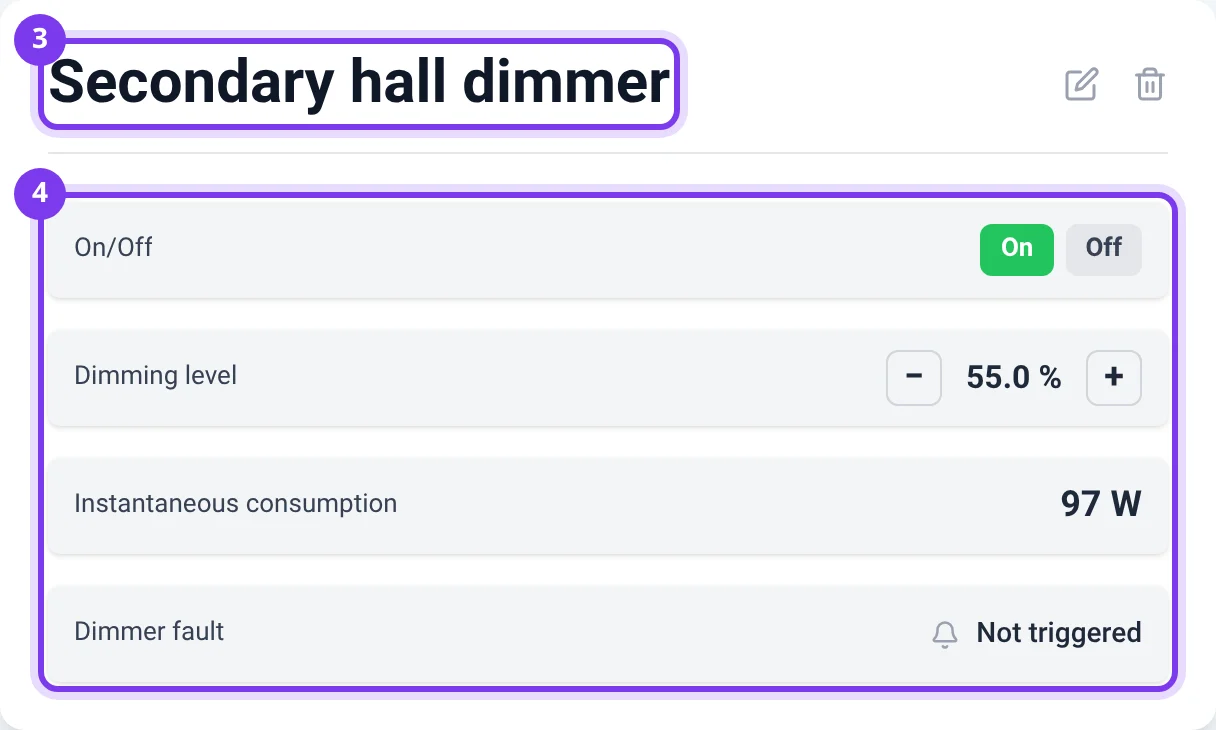
The detail shows the remaining datapoints when the zone card reaches its display limit. The account’s visibility restrictions still apply.
The arrow at the top left returns to the previous page; on a narrow screen, its text may be hidden. To return explicitly to the topology, choose Building, then the By floor tab.
Read a row
Section titled “Read a row”The datapoint label appears on the left, its value, state or control on the right. Units, state texts, options and colors depend on its configuration. Names and labels configured for the site may remain in their original language, whatever the interface language.
| Display | How to interpret it |
|---|---|
| Number and unit | Read the value, the unit and the datapoint label together. |
| Dot and state text | The text describes the configured state; the dot alone is not a command. |
| N/A | No usable value is available for this display. It is not a zero. |
| Write-only | The datapoint does not provide a value to view and your display does not offer its active command. |
| Greyed-out row without value or control | Hover over it on a computer: it may correspond to a KNX object still awaiting installation. |
For a pending object, the tooltip states KNX object not yet physically installed. Placeholder display — values and commands are not operational. If this is not the expected situation, have your installer check the installation and the configuration.
A row containing a command may temporarily display the requested value before the result is confirmed. To understand the messages and check an action, see command troubleshooting.
Use a datapoint’s command
Section titled “Use a datapoint’s command”Depending on the datapoint, follow one of these procedures:
- Set a numeric value with the buttons, direct input or a slider.
- Choose a state, an option or send a pulse.
- Run a Link’nX action or scenario that is already linked.
The viewing permission does not give access to all commands. An administrator can have the component’s control permissions and the restrictions applied to its datapoints checked.
Other actions from the detail
Section titled “Other actions from the detail”- View recorded events and KNX entries: the component history.
- Reach the component quickly from the dashboard: add or remove a favorite.
- For authorized administrators and installers, subject to the prerequisites of these guides: reorder the datapoints, delete the component from its detail or fill in its parameters with the creation and editing form.
Troubleshooting
Section titled “Troubleshooting”- Component not found.: choose Back to topology, explicitly select the By floor tab and look for the component again in the right supervision.
- Datapoint missing or showing N/A: check the component name and your account’s scope with the administrator. This indication alone means neither a zero value nor a deletion.
If the difficulty persists, contact support@can-nx.com with the component, the datapoint you are looking for and the display obtained.
French labels: Voir les détails, Commande seule, Composant non trouvé., Retour à la topologie.