Boss’nX technical alarms: read the dashboard summary
Boss’nXUserAdministratorInstaller
Boss’nX, supervision dashboard: Technical alarms block and Alarm History page
The Technical alarms block on the Dashboard of a Boss’nX supervision counts the active alarms by priority and shows the most recent ones. Clicking in the block opens Alarm History, where you search, filter or export alarms.
For the users, administrators and installers of a supervision, opened directly or from a hypervision. The visible alarms depend on the account’s scope and rights. For the aggregated summary of several supervisions, follow the hypervision alarms.
Read the counters and the latest alarms
Section titled “Read the counters and the latest alarms”-
Select the expected supervision, then Dashboard, following the navigation landmarks.
-
Wait for loading to finish and find Technical alarms. Its title may have been customized.
-
Read Active alarms, then Low priority, Medium priority and High priority.
-
Read the messages under these counters, with their start indication.
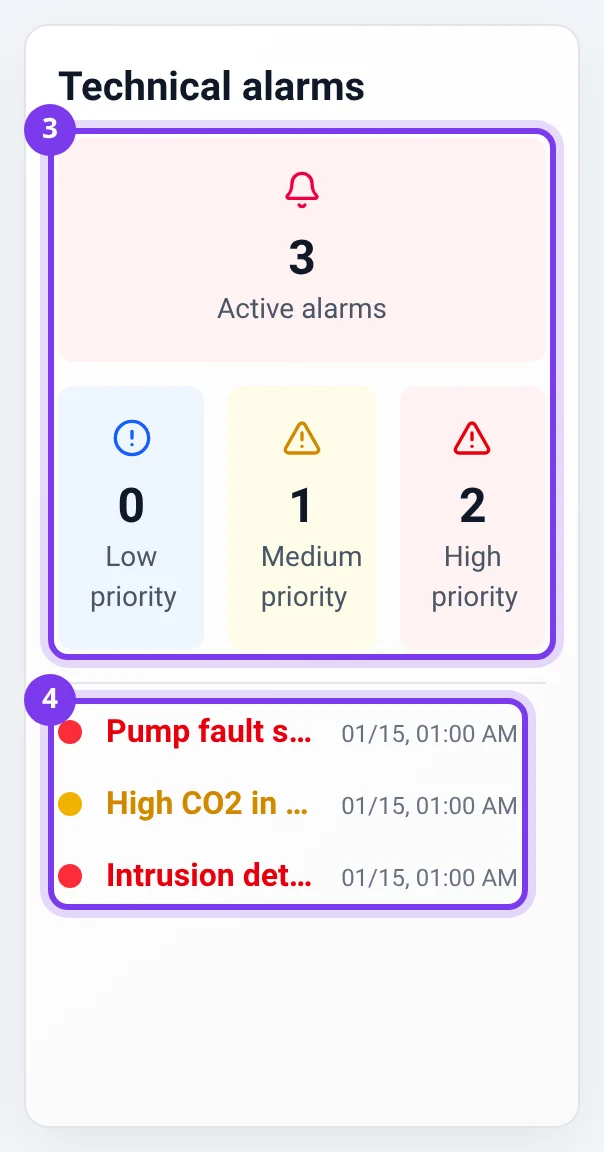
| Element | What it shows |
|---|---|
| Counters | The active alarms not in standby within your scope, in total then by priority |
| Message list | At most ten of these alarms, the most recent by start time first |
| Message badge | Its priority: blue for low, yellow for medium, red for high |
| Start indication | Relative for a recent event, then a day or a date and a time; format depends on the language |
The total can therefore exceed the number of visible lines. Inactive alarms and those in standby are viewed in the history.
An acknowledged alarm can remain active and keep appearing here: acknowledgment and the end of the alarm are two distinct states. See acknowledge an alarm.
A counter at zero, once loading has finished, only covers the active alarms not in standby that are visible in this context: it does not allow any conclusion about the physical state of the whole installation.
Open the alarm history
Section titled “Open the alarm history”- Outside the dashboard’s edit mode, click in the Technical alarms block. With the keyboard, place the focus on this block and press Enter or Space.
- Check the Alarm History title.
- Use the Ongoing, Ended and Standby tabs, then the search and filters described in view alarms.
- Find the component or message you are looking for. Clicking a message in the summary opens the general page, without selecting that single alarm.
Viewing does not acknowledge the alarm and does not put it in standby. For these actions, follow their guides and their prerequisites. To get a file, follow export alarms.
On a narrow screen, the counters stack. A message truncated in the summary can be read in full in the history: tap the block to open Alarm History and use its filters.
Troubleshooting
Section titled “Troubleshooting”- The block is missing: check the chosen supervision. An account allowed to edit the dashboard can check the Alarms checkbox in Visible widgets, following dashboard organization. Also have the alarm viewing rights and the widgets authorized for the role checked.
- Clicking does not navigate during editing: in edit mode, the dashboard is used for its settings. If you have prepared changes, finish saving or restoring them following the dashboard guide, then click again outside edit mode.
- The expected number differs: compare the same scope, distinguish active, inactive and standby alarms, and take the ten-line limit into account. See standby.
- The counter shows zero while an alarm is expected: wait for loading to finish, check the context, then look at the history tabs.
For other questions, see the frequently asked questions about favorites and alarms.
Contact support
Section titled “Contact support”If these checks have already been made and the result remains unexpected, write to support@can-nx.com. Give the supervision, the counter concerned, the message or component you are looking for, the tabs and filters checked, and attach a screenshot without sensitive data if useful.
French labels: Tableau de bord, Alarmes techniques, Alarmes actives, Priorité basse, Priorité moyenne, Priorité haute, Ouvrir la page des alarmes, Historique des Alarmes. Messages configured for the site may remain in their original language.