Boss’nX overview: read the site’s weather, image and statistics
Boss’nXUserAdministratorInstaller
Boss’nX, dashboard of a supervision opened directly or from the hypervision: Overview block
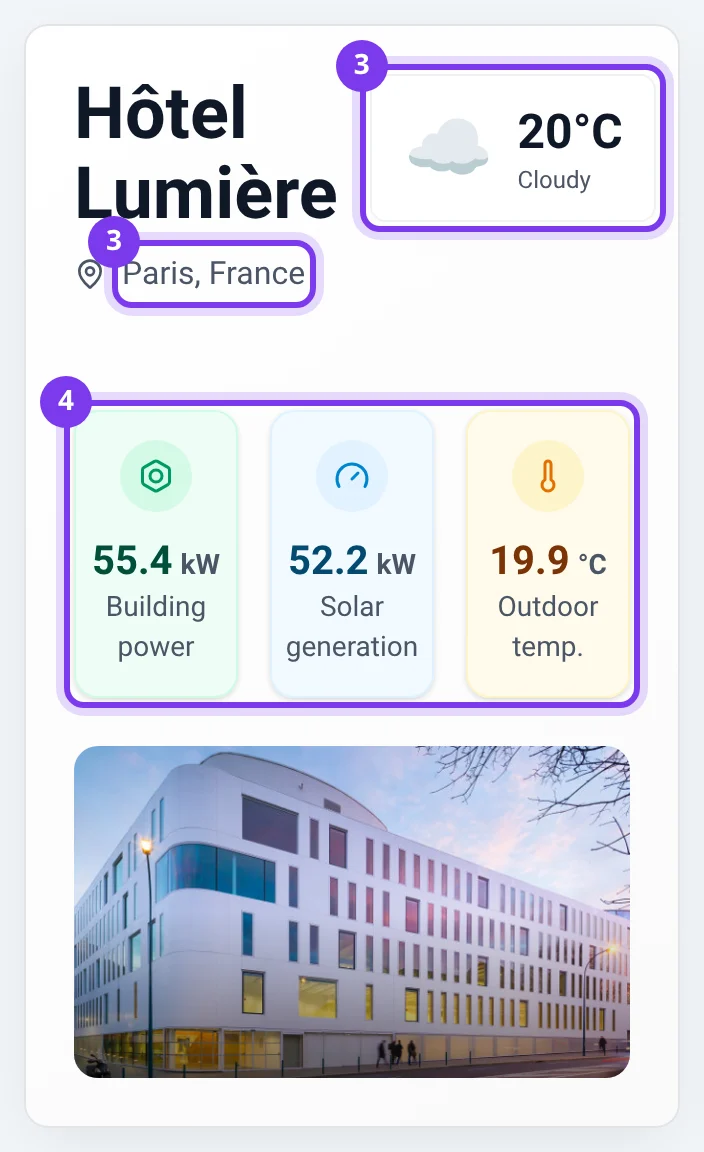
The Overview block of a Boss’nX supervision Dashboard shows the site title, its location, the weather, an image and up to four statistics: values entered by hand or KNX measurements from components.
Intended for users, administrators and installers, whether the supervision is opened directly or from the hypervision. To change the figures, follow the statistics configuration; for the photo, the image management.
Find the block on the dashboard
Section titled “Find the block on the dashboard”-
Open the expected supervision, then Dashboard, as described in Boss’nX navigation.
-
Find the block bearing the name or title of your site. In the widget choices of edit mode, it corresponds to Overview.
-
Under the title, read the location, then the weather when it is available.
-
Read the statistics cards: each one shows a value, its unit if any and its label.
-
Scroll the page if needed. Depending on the block width, the image is below the information or to its right.
Custom titles and labels are shown as they were entered for the site, whatever the interface language.
The block holds from zero to four statistics, chosen in its settings: a block without cards can belong to an equipped site. If the whole block is missing, have its display and the widgets allowed for the role checked, as described in organizing the dashboard.
Know where a statistic comes from
Section titled “Know where a statistic comes from”| Source | Origin of the value |
|---|---|
| Manual value | Value entered in the card settings |
| KNX datapoint | Measurement of a component, shown with the configured unit |
A number of occupants, places or floors can therefore be an entered value rather than an automatic measurement. To know the source of a card, ask the person in charge of the dashboard to review the statistics settings.
These cards are for viewing. To act on equipment, use component commands.
Interpret the displayed values
Section titled “Interpret the displayed values”- 1 or 0: this may be binary data; its meaning depends on the chosen datapoint.
- —: no usable value is shown for this card. Do not read it as a measurement equal to zero.
- Unit: it is a label. Changing W to kW in the settings does not convert the number. Before comparing statistics, check that they represent the same quantities with consistent units.
- Weather and temperature: the weather and a KNX temperature statistic are two separate pieces of information. A difference between them is not enough, on its own, to conclude that a sensor is faulty.
Troubleshooting
Section titled “Troubleshooting”| Display | Action |
|---|---|
| Loading weather… | Wait for the result. |
| Weather unavailable | Check your connection, finish any change in progress, then reopen the dashboard once. Do not change a KNX measurement to correct the weather. |
| Visuel indisponible (Visual unavailable) and Ajoutez une image depuis le mode édition. (Add an image from edit mode.) | An authorized person can add or change the image. |
| Statistic at — or unexpected value | Check the site and the label, then have the card’s source and unit reviewed. |
For other questions, see the overview FAQ. If the weather stays unavailable, or if a statistic remains uncertain after these checks, contact support@can-nx.com with the name of the statistic and the attempts made.
French labels: Tableau de bord, Vue d’ensemble, Chargement météo…, Météo indisponible; the text Visuel indisponible may remain in French in the English interface.