Nuki smart lock in Link’nX: declare the lock and create its actions
Link’nXAdministratorInstaller
Link’nX web: Nuki card under Security & Access and Nuki-type actions
To control a Nuki smart lock from Link’nX, first declare the lock with its identifier and API key, then create a Nuki action: unlock, lock, open the latch or Lock ‘n’ go. Then add this action to the scenario that must run it.
Intended for administrators and installers authorized to configure the gateway.
Before you start
Section titled “Before you start”- The lock is connected to the Internet. This is set from the Nuki mobile app.
- You have access to the lock’s Nuki Web account, on web.nuki.io, to get its identifier and an API token. Do not replace the token with your password.
- Enter the key only in the dedicated form. Do not send it by messaging, by e-mail or in a screenshot.
Get the API token and the lock ID in Nuki Web
Section titled “Get the API token and the lock ID in Nuki Web”Link’nX needs two pieces of information provided by Nuki Web: an API token, entered in API key, and the lock’s identifier, entered in Lock ID.
-
Sign in to your account on web.nuki.io, then open the API page from the menu.
-
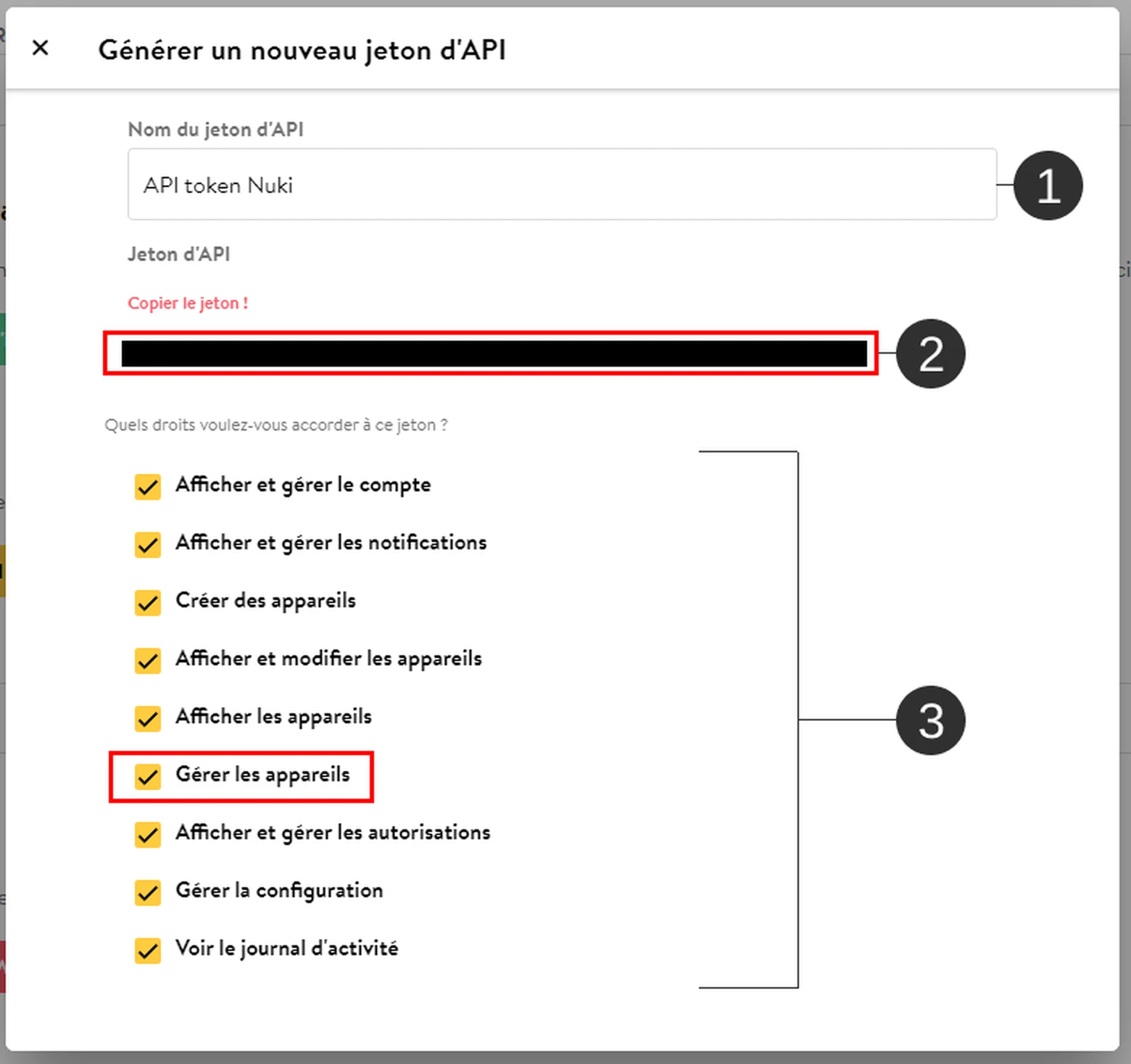
Generate a new API token, giving it a name, for example “Link’nX”.
-
Among the rights granted to the token, leave Manage devices checked: without this right, Nuki rejects the commands sent by Link’nX.
-
Copy the token as soon as it is displayed and keep it somewhere safe: once you leave the page, it can no longer be viewed in full.
-
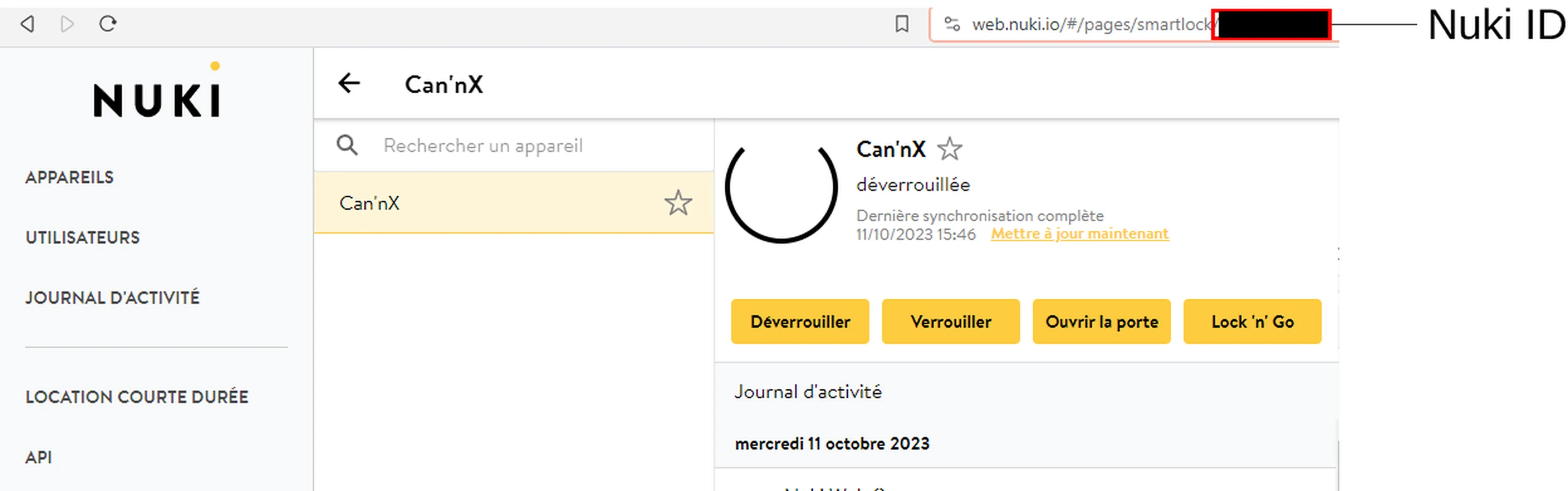
Open the devices page, then select the lock. Its identifier is the number shown at the end of the page address, in the browser’s address bar.
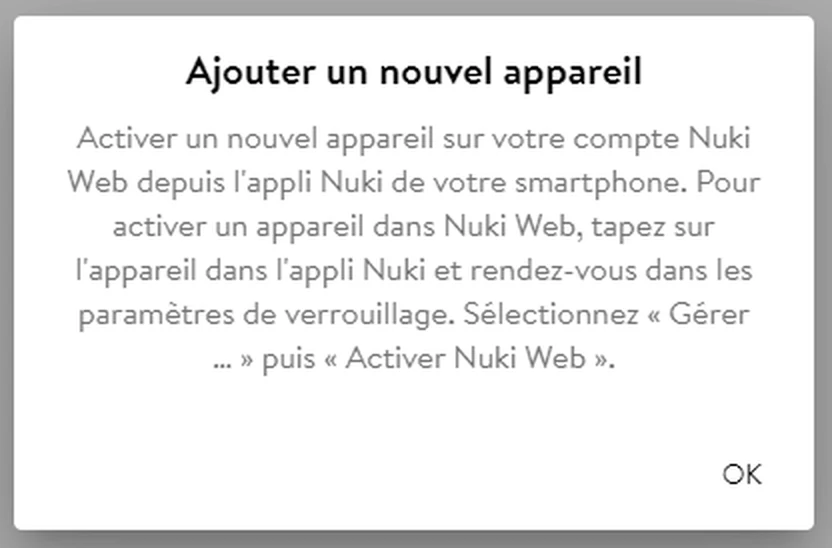
If the lock does not appear in Nuki Web, activate it from the Nuki app: tap the lock, open its settings, choose the option to manage it, then the option that activates Nuki Web.
Declare the Nuki lock
Section titled “Declare the Nuki lock”- Check the project and the gateway in the Link’nX header.
- In Devices, open Security & Access, then Nuki, or search for Nuki in Search a device…. On mobile, open the navigation first.
- If a padlock or an activation message appears, check the context and the Nuki option. For missing access, contact your distributor or support.
- Click Add. The Nuki lock declaration form opens.
- Fill in Name, 64 characters maximum. Fictitious example: “Reception door”.
- Fill in Lock ID, 64 characters maximum: the exact identifier of the lock concerned, noted in Nuki Web.
- Fill in API key with the API token generated in Nuki Web. All three fields are required; the declaration has no IP or Port field.
- Click the round floppy disk at the bottom right and wait for Success!.
Create a Nuki action
Section titled “Create a Nuki action”- Open Actions, then click Add. In Select an action type, choose Nuki.
- Enter Name: required, 64 characters maximum, not only spaces.
- In Nuki devices, choose the declared lock. An action targets a single lock.
- In Action, choose the command that matches the desired result, using the table below.
- Click the floppy disk and wait for Success!.
| Command | Described effect |
|---|---|
| Unlock | Unlocks the lock. To also open the latch, choose the appropriate following command. |
| Lock | Locks the lock. The number of turns is set in the Nuki lock’s settings. |
| Unlatch | Unlocks and holds the latch open for the time set in the Nuki lock’s settings. |
| Lock ‘n’ go | Unlocks if needed, then locks again after the delay set in the Nuki lock’s settings. |
| Lock ‘n’ go with unlatch | Adds opening the latch to the Lock ‘n’ go operation. |
To open the latch, choose Unlatch: this command explicitly requests both operations. The action has no Value field and no duration setting: the Lock ‘n’ go delay, the number of turns and the latch opening time are set in the lock’s settings, from the Nuki app or Nuki Web.
Add the action to a scenario
Section titled “Add the action to a scenario”Saving the action does not run it. To use it in an automation, add the action to the scenario concerned. Check the lock and the command before any run: opening the latch can allow the door to open.
Edit a declaration or an action
Section titled “Edit a declaration or an action”- Declaration: click the Edit pencil to review it. After a correction, use the floppy disk and wait for Updated!.
- Action: open its name or its pencil, review the parameters and use the floppy disk. If affected scenarios are displayed, review their names, then choose SAVE, or CANCEL. The common actions guide details duplication and unsaved changes.
Delete a declaration
Section titled “Delete a declaration”- Before deleting a declaration, check where it is used.
- Click its Delete trash can. The browser confirmation shows its name.
- Cancel to keep the declaration, or confirm, then check that it disappears after Deleted!.
The deletion is not a lock command, and no button restores the declaration.
Check the result
Section titled “Check the result”- After Success!, find the lock row and its Lock ID in the Nuki list.
- Find the action in Actions and review the saved lock and command.
- Saving concerns the configuration: it indicates neither the connection to the lock, nor its status, nor a door opening. To check the actual effect, run the action during an authorized test and watch the lock.
Troubleshooting
Section titled “Troubleshooting”- The lock does not appear in Nuki devices: check the project, the gateway and that its declaration is present in Nuki. Save the declaration before reopening the action form.
- Nothing happens after a test: if you only saved the action, it has not been run. If you ran it, check the saved target and command, then, in Nuki Web, that the lock is online and that the API token has the Manage devices right.
If the target and command are correct and the lock still does not respond, contact support@can-nx.com with the context, the command, the symptom and the tests already done. Do not include any access key.
French labels: Déclaration d’un verrou Nuki, Nom, ID du verrou, Clé d’API, Appareils Nuki, Action, Déverrouiller, Verrouiller, Déverrouiller + ouverture du pêne demi-tour. Déverrouiller + ouverture du pêne demi-tour corresponds to the command that opens the latch.