Apple HomeKit: use and troubleshoot exported Link’nX commands
Link’nXUserAdministratorInstaller
Apple app and Link’nX web: actions and scenarios exported to HomeKit
Link’nX actions and scenarios exported to HomeKit appear as switch-type commands: activating one requests the launch of the associated Link’nX item. Find the PIN code, add Link’nX to the Home app, interpret the state of these switches and troubleshoot a missing item or a command with no effect.
For the authorized user of an installation that is already prepared, as well as for the administrator and the installer. The selection of exported items is set in Link’nX following the HomeKit export guide.
Find the PIN code
Section titled “Find the PIN code”- In the right project and the right gateway, open Smart Home → HomeKit.
- In HomeKit configuration, read the PIN code on the HomeKit row. This code corresponds to the gateway’s serial number.
- Use it only to pair your installation, and do not share it.
Add Link’nX in the Home app
Section titled “Add Link’nX in the Home app”-
Connect the iPhone or iPad to the same network as the gateway, then open the Home app.
-
Tap +, then Add Accessory.
-
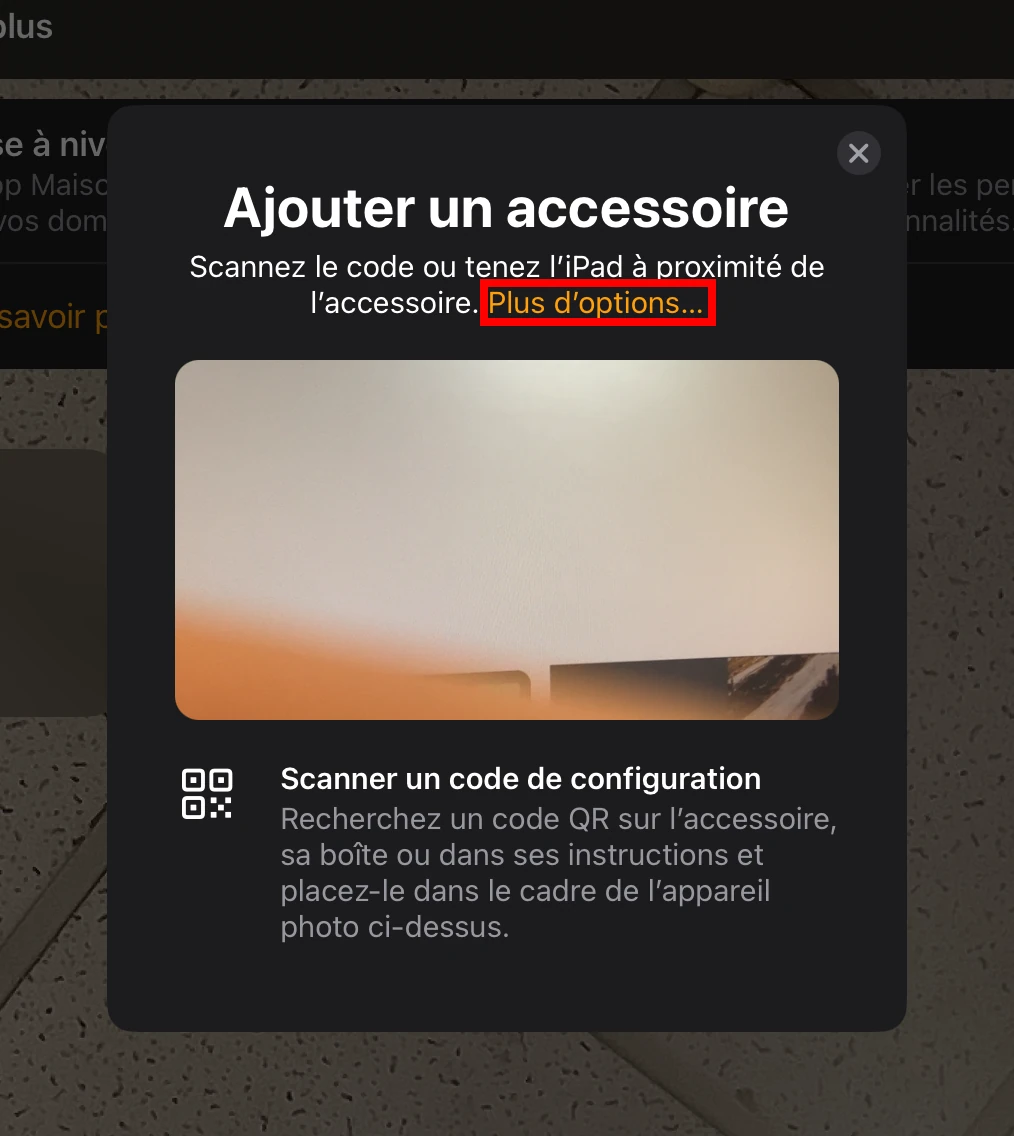
In the Add Accessory window, tap More options….
-
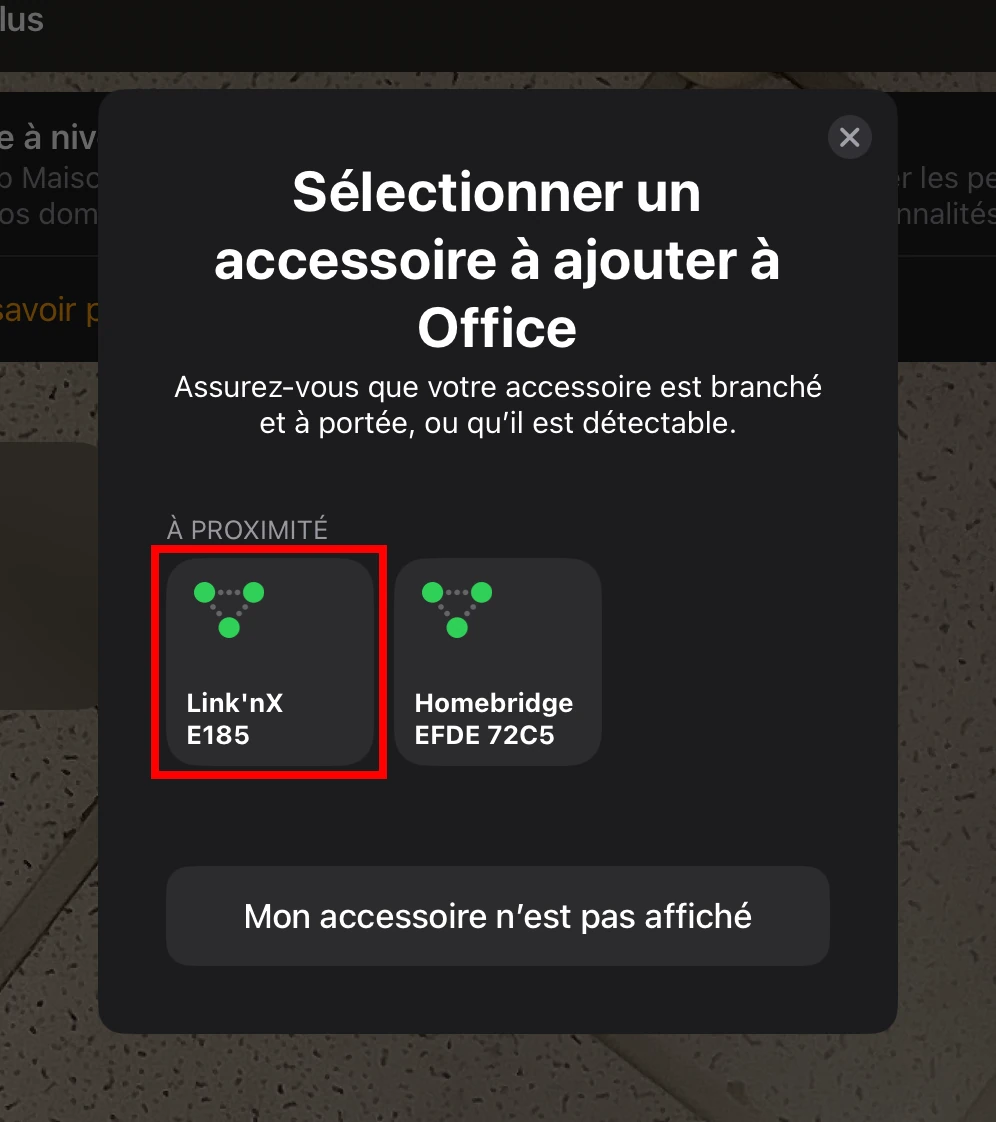
In the list of nearby accessories, select the Link’nX accessory. If it does not appear, check that the gateway is connected to the same network as the iPhone or iPad.
-
In the setup code field, enter the PIN code read in Link’nX, then tap Continue and follow the steps in the Home app.
The items exported from Link’nX then appear in the Home app. To control them away from home, the Home app requires a home hub: this setting is handled by Apple. Do not delete the home or an existing pairing, and do not reset the gateway just as a test; to resume an existing pairing, contact support.
Understand exported switches
Section titled “Understand exported switches”Each exported action or scenario is presented as a switch. Activating it requests the launch of the associated Link’nX item.
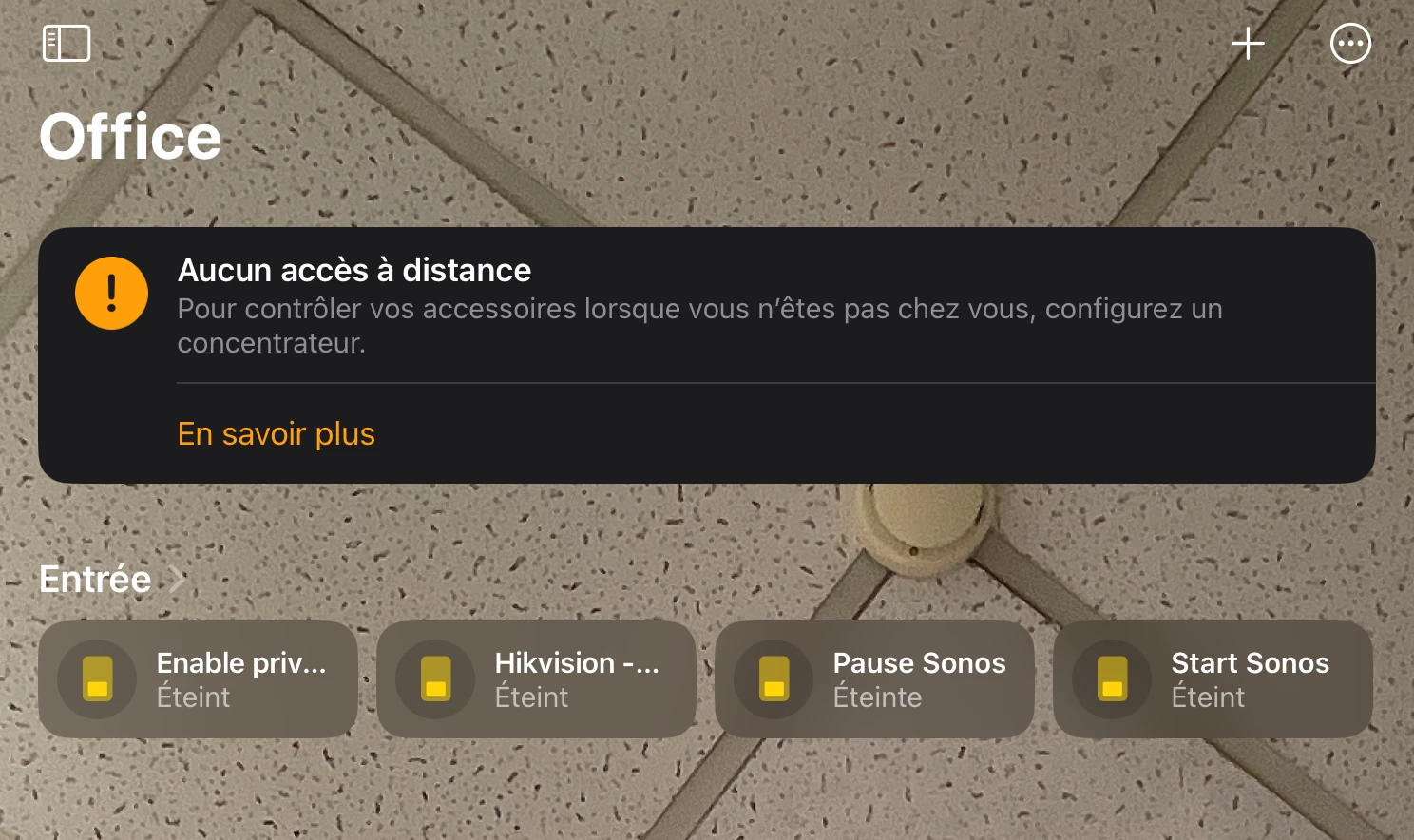
- For an action, the indicator may return to off shortly after the launch. This concerns the indicator only: it tells neither whether the device executed the command nor whether it returned to off.
- Turning the switch back off sends no reverse command and does not necessarily stop a scenario already launched.
- For an actual change of state, use the device’s own commands and procedures. Judge its position or whether it is running on the device itself, not on the export switch.
Have two uses validated before relying on them
Section titled “Have two uses validated before relying on them”Two uses require a procedure validated by support for your version: direct export of a KNX action carrying a specific value, and HomeKit launch of a scenario that is subject to conditions or disabled. Checking the item in the export ensures neither the value sent nor that these restrictions are respected at launch.
Check the result
Section titled “Check the result”After a HomeKit command, check the actual result on the device or in its interface, without repeating a sensitive command. If there is a difference, review the command and value of the action in the action editor, or the triggers, conditions and actions of the scenario in its detail windows.
Troubleshooting
Section titled “Troubleshooting”| Symptom | Useful checks | If that is not enough |
|---|---|---|
| The item does not appear in HomeKit | Right project and gateway, item saved in Link’nX, export checked, then saved and reviewed; give the Home app time to update | Check the pairing, then have the availability of the service confirmed for the installation |
| A checkbox disappears from the export | Clear the search and review the whole selection, especially after Tout sélectionner (Select all) | Restore the selection, save and reopen; contact support if it is not kept |
| The name has not changed in HomeKit | Check the name of the action or scenario and the selection in Link’nX, save the export, then wait for the Home app to update automatically | Have the name update confirmed, without removing and then re-pairing at random |
| The switch goes back to off | Distinguish the launch indication from the result on the device | Check the actual result in the device interface, without repeating a sensitive command |
| Turning the switch off does not cancel the action | Look for the reverse command or the stop provided by the device or scenario guide | Ask for the suitable procedure, without assuming that an export acts as a synchronized state |
Contact support
Section titled “Contact support”If the selection, context and saving checks have already been done, write to support@can-nx.com with the symptom, the item concerned and these tests. For pairing, also state Link’nX/HomeKit, the app and its version, the context and the message displayed. A screenshot can help if it hides the PIN code and private information.