Open Emergy’nX from Can’nX Cloud and create its permanent link
Emergy’nXAdministratorInstaller
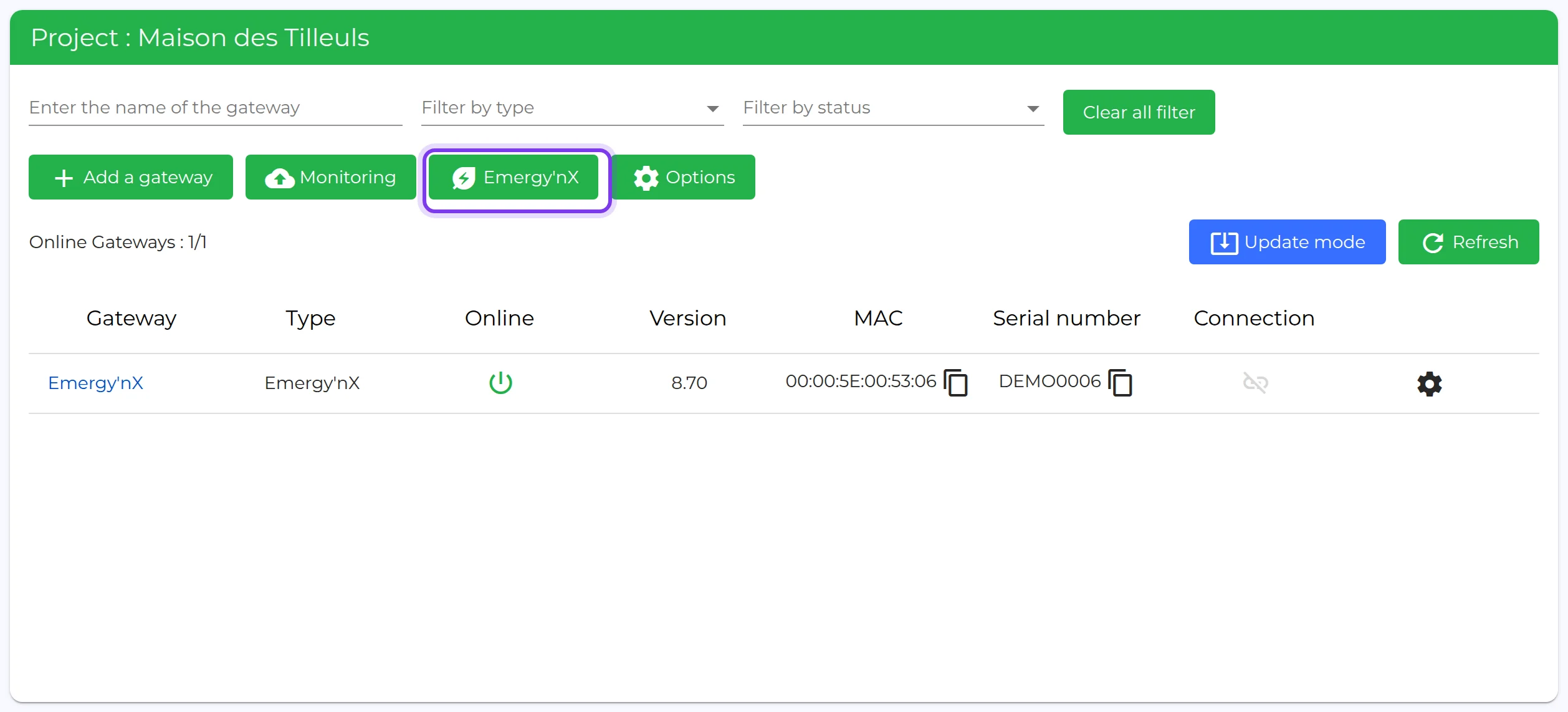
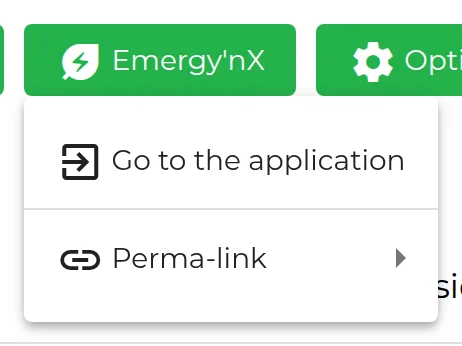
Can’nX Cloud: Emergy'nX button on the project page, Go to the application and Perma-link menu
In Can’nX Cloud, the Emergy’nX button on the project page opens the Emergy’nX application for that project and manages its permanent link. This link opens Emergy’nX without a Can’nX Cloud account: it is the access to hand over to the customer and install on their devices.
Intended for the installer or the project administrator in Can’nX Cloud. To find your way around the application afterwards, follow the Emergy’nX menus guide.
Before you start
Section titled “Before you start”The project contains an Emergy’nX gateway that has been added and initialized: see commissioning in Can’nX Cloud.
Open Emergy’nX
Section titled “Open Emergy’nX”-
In Can’nX Cloud, open the project. The Emergy’nX button appears above the gateway list when the project contains an Emergy’nX gateway.
-
Click Emergy’nX, then Go to the application. Emergy’nX opens in a new tab, on the project.
-
Check the project name in the Emergy’nX top bar.
The Go to the application link is created when the project page loads and remains valid for one hour. If the page has been open for longer, reload it before clicking.
Create and copy the permanent link
Section titled “Create and copy the permanent link”-
Click Emergy’nX, then Perma-link.
-
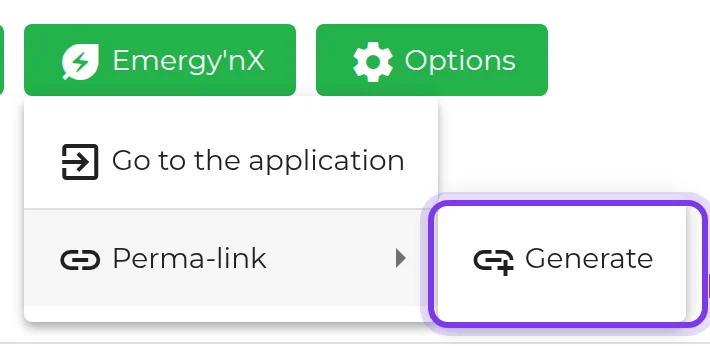
Click Generate. The menu closes.
-
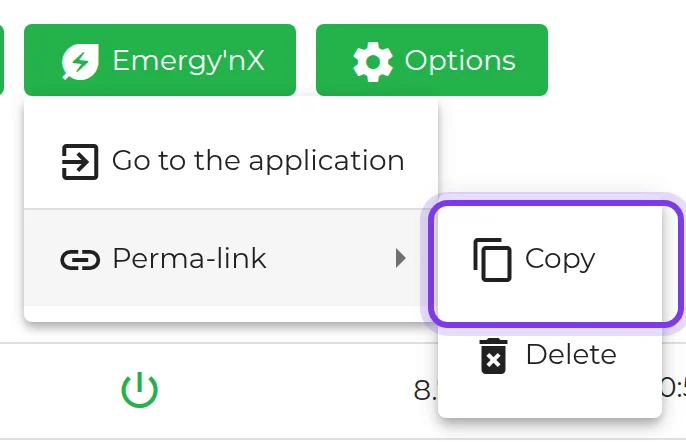
Reopen Emergy’nX → Perma-link, then click Copy. Address copied confirms that the link has been copied to the clipboard.
-
Open this link on the customer’s device, then install the app from that tab: the icon created reopens the project.
The permanent link remains valid for ten years. Anyone who has it can open Emergy’nX on this project: share it only with the people concerned, through a private channel.
Delete the permanent link
Section titled “Delete the permanent link”- Click Emergy’nX, then Perma-link.
- Click Delete. The submenu offers Generate again, which creates another link.
Delete removes the link from Can’nX Cloud. It does not disable a link already copied, nor the access of a device on which the link was opened or installed: these remain usable.
Check the result
Section titled “Check the result”- The Perma-link submenu offers Copy and Delete: a permanent link exists for the project.
- Opened on the customer’s device, the link shows the project name in the Emergy’nX top bar and the Connected indicator.
Troubleshooting
Section titled “Troubleshooting”| Symptom | Cause and action |
|---|---|
| Emergy’nX button missing | The project does not contain an Emergy’nX gateway. Check the open project, or add the gateway by following commissioning. |
| Emergy’nX button greyed out | The project’s links are loading. Wait a few seconds. |
| Emergy’nX shows Demo access or the demo instead of the project | The link was not accepted: an opening link more than one hour old, or a partially copied permanent link. Reload the project page in Can’nX Cloud and try again, or copy the permanent link again with Copy. |
For other situations, see Emergy’nX troubleshooting. If the problem persists, or if a permanent link was shared by mistake, write to support@can-nx.com with the project name and the gateway name. Do not include the link.
French labels: Se rendre sur l’application, Lien Permanent, Générer, Copier, Supprimer, Copié !.