Commission Emergy’nX: add and initialize the gateway in Can’nX Cloud
Emergy’nXAdministratorInstaller
Can’nX Cloud: Projects page, Add a gateway window and gateway initialization
A wired Emergy’nX is registered in Can’nX Cloud (can-nx.cloud): you create a project, add the gateway to it with its QR code or with its MAC address and serial number, then start its initialization. The project’s Emergy’nX button then opens the application.
Intended for the installer commissioning a new Emergy’nX.
Before you start
Section titled “Before you start”- The gateway is powered and connected to a network with Internet access: see Emergy’nX wiring. The KNX bus is not needed for initialization.
- Your Can’nX Cloud account has the right to create a project and to add a product to it.
- For a manual addition, note the MAC address and the serial number on the side label of the gateway. For an addition by QR code, use a device with a camera.
Create the project
Section titled “Create the project”Skip this step if the project already exists.
-
Sign in to Can’nX Cloud. The Projects page appears.
-
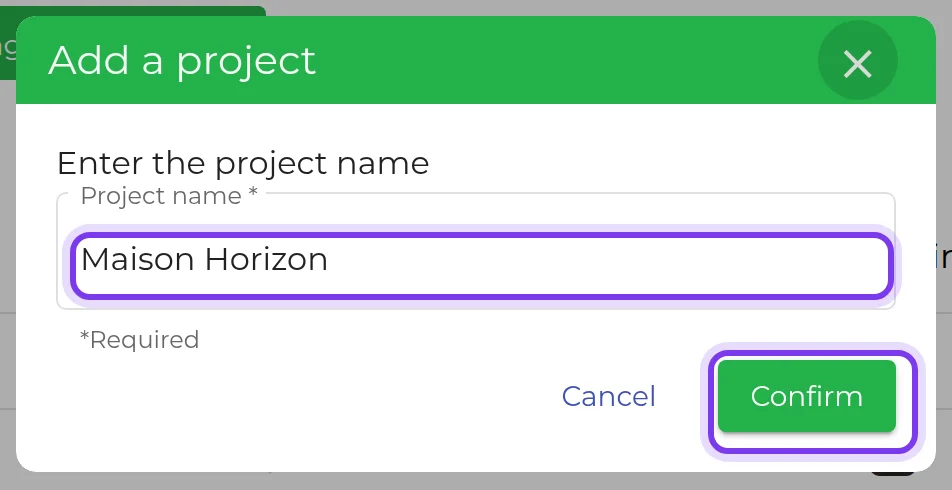
Click Add a project. The Add a project window shows Enter the project name.
-
Enter the Project name, for example Maison Horizon (example), then click Confirm.
-
Open the project in the list. The title becomes Project : followed by the project name.
Add the Emergy’nX to the project
Section titled “Add the Emergy’nX to the project”-
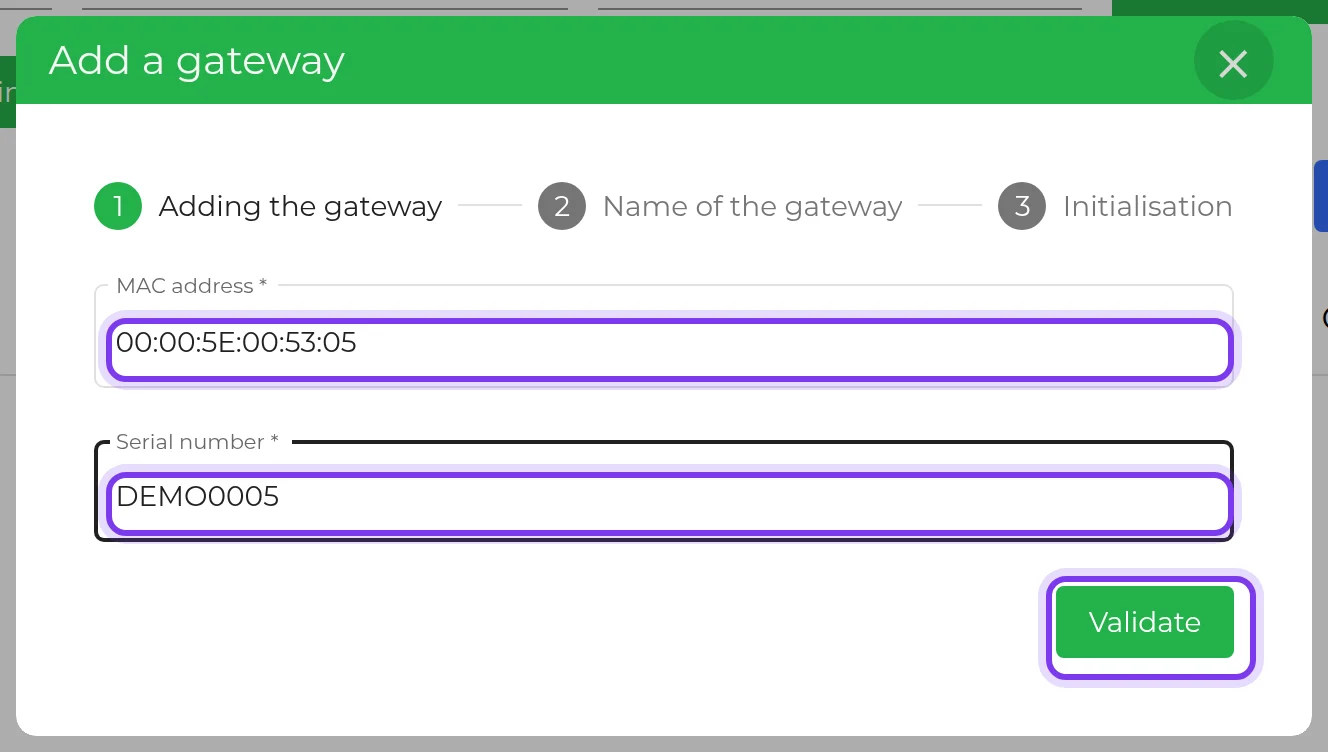
In the project, click Add a gateway. The Add a gateway window opens on the Adding the gateway step.
-
Identify the gateway:
- Add with QR code: hold the QR code of the side label up to the camera;
- Manual addition: enter the MAC address, formatted with colons as you type, and the 8-character Serial number, then click Validate.
-
At the Name of the gateway step, enter a name of 20 characters at most, for example Energy (example), then click Next.
-
At the Initialisation step, Do you want to start the initialization of the gateway appears with This one lasts about 10mins. Click Start now, or Later to initialize the gateway afterwards.
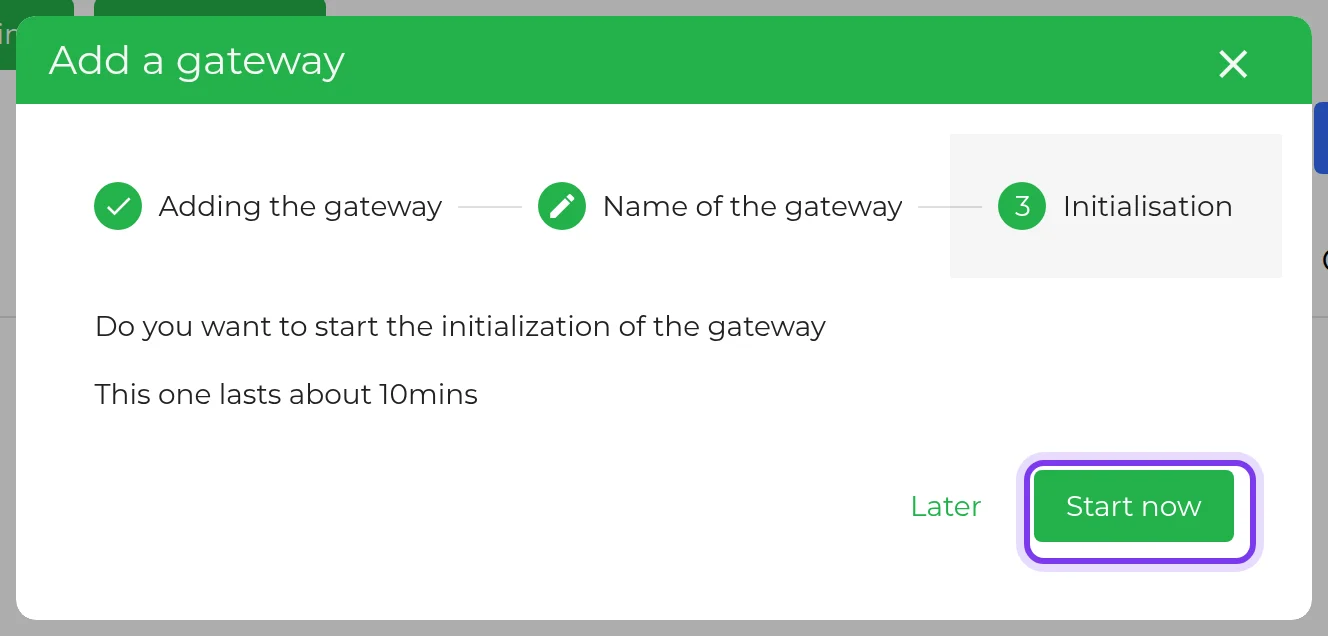
The gateway has been added to your account confirms the addition. After Start now, If the gateway is not online, you have 10 minutes to connect it to the internet reminds you of the time limit: the gateway must be powered on and online during these 10 minutes.
If the gateway has already been initialized, the Initialisation step shows The gateway is ready!: complete the step without starting another initialization.
Attach a gateway already linked to a project
Section titled “Attach a gateway already linked to a project”If the gateway already belongs to another project of your account, the Link gateway to a project step replaces the name step. It shows The gateway followed by its name and is already linked to project followed by the current project, then Are you sure you want to move the gateway to this project?
- Confirm moves the gateway to the open project and goes on to the Initialisation step.
- Cancel closes the window without changing anything.
Initialize the gateway later
Section titled “Initialize the gateway later”- In the project’s gateway list, click the button with the gear icon on the Emergy’nX row.
- Choose Initialization. This entry only appears for a gateway that is not initialized yet.
- The Confirmation window shows Do you really want to initialize the gateway: followed by its name. Click Confirm.
Check the result
Section titled “Check the result”-
Wait about ten minutes: the duration depends on the speed of the Internet connection.
-
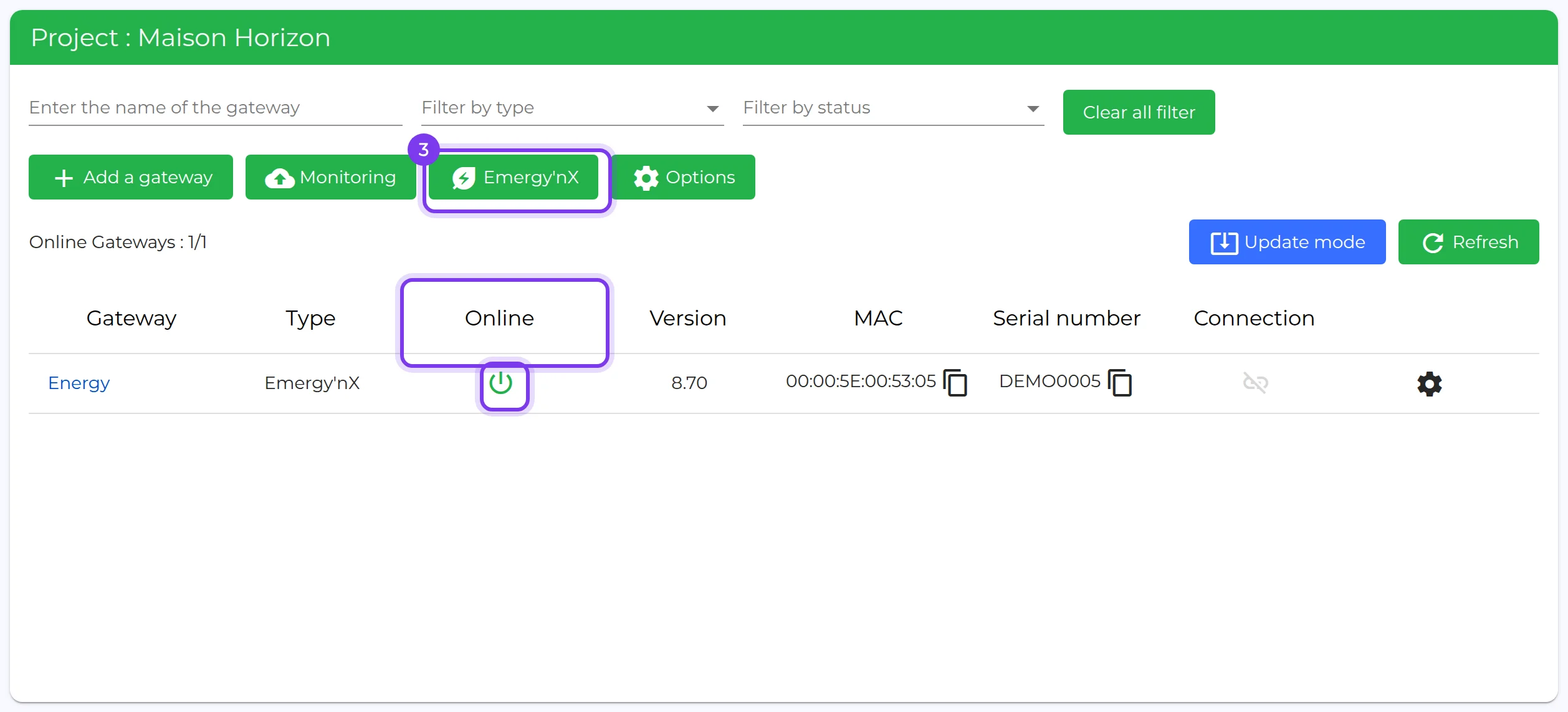
In the project’s gateway list, check the Online column: the power icon is green when the gateway is online, red when it is Offline. The Type column shows Emergy’nX.
-
Above the list, the Emergy’nX button gives access to the application: continue with opening Emergy’nX and its permanent link.
Troubleshooting
Section titled “Troubleshooting”| Message or symptom | Cause and action |
|---|---|
| The gateway you are trying to add was not found on our database | The MAC address or the serial number does not match. Compare them with the side label, or use Add with QR code. |
| The gateway has already been added | The gateway is already in your account. Find it in the list of your projects. |
| Invalid gateway name | The name is empty or too long. Enter a name of 20 characters at most. |
| An error has occurred. Initialization cannot take place | Start the initialization again from the gear icon, with Initialization. |
| Gateway still Offline after initialization | Check the power supply, the RJ45 cable and Internet access, then see the Troubleshooting section of the wiring guide. |
| Add a gateway or Add a project button missing | Your account does not have this right. Contact the account owner. |
For other situations, see Emergy’nX troubleshooting. If the problem persists, write to support@can-nx.com with the gateway name, its serial number and the message displayed.
French labels: Projets, Ajouter un projet, Entrer le nom du projet, Nom du projet, Ajouter un produit, Ajout du produit, Ajout avec QR code, Ajout manuel, Adresse MAC, Numéro de série, Valider, Nom du produit, Suivant, Associer la passerelle à un projet, Initialisation, Démarrer maintenant, Plus tard, Initialisation du produit, En ligne, Hors ligne.