Boss’nX network health: understand IP and KNX device status
Boss’nXUserAdministratorInstaller
Boss’nX, building supervision: Network health page, with the View network health capability
The Network health page in Boss’nX shows the results of the reachability tests that Kloud’nX gateways run periodically on IP devices and KNX participants. Use it to spot a device that no longer responds and to know what to check.
For users, administrators and installers with View network health in the building’s supervision. To add, edit or suspend a monitor, use the monitor management guide.
Open the building’s network health
Section titled “Open the building’s network health”- Open the supervision of the right building; from a hypervision, enter this building.
- Open Menu → Network health, in the Alarms family. You can also reach it through the Network health tab of the Alarms page, or through the Network health link shown when you click the connection status in the header, for example Online.
If Network health is missing from the Menu, ask the administrator to check View network health in your role’s capabilities.
Read the monitored devices table
Section titled “Read the monitored devices table”-
In Monitored devices, locate the device by its name and address. The IP or KNX badge indicates the type of monitoring.
-
Read Status, Location, 7-day uptime and Since / last contact.
-
Filter if needed with All, IP or KNX.
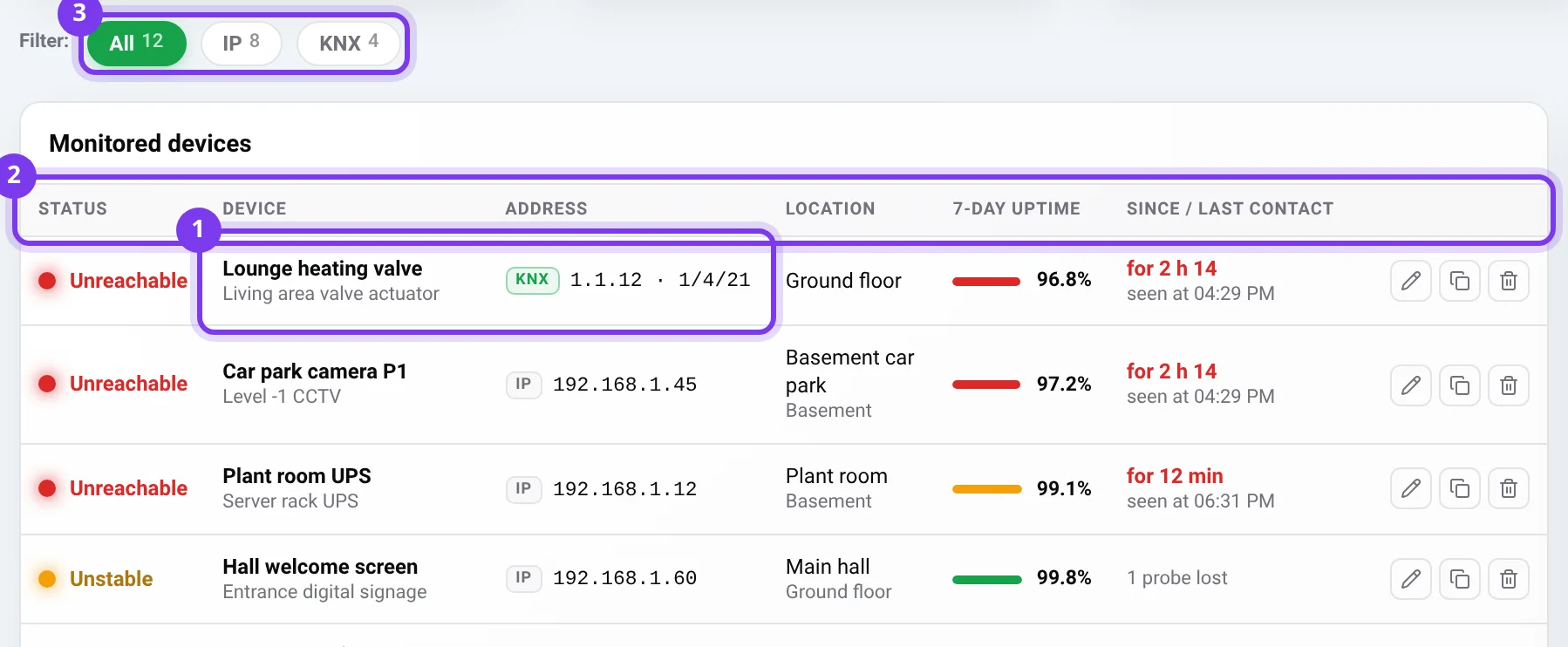
- Problems appear first.
- For a KNX monitor with two addresses, the Address column shows the physical address and the group address, separated by a middle dot.
- The four counters Online, Unstable, Unreachable and Unknown always cover all monitors, whatever filter is selected.
- No monitored device means that no monitor is configured in this context, not that the building has no devices. An authorized administrator or installer can add a monitor.
Interpret the states
Section titled “Interpret the states”| Displayed state | Meaning | What to do |
|---|---|---|
| Online | A positive monitoring result has been reported: the device answers the test. | For a specific function, such as a camera image, test it on the device: an IP response does not cover all the functions of a device. |
| Unstable, with 1 probe lost | Recent tests did not receive the expected response. The text summarizes the situation, without a detailed history of each test. | Watch how it evolves and check the context before changing the configuration. |
| Unreachable | Several successive tests received no response. for… gives how long this state has lasted, seen at… the time of the last contact. | Follow “Troubleshooting” below. This state alone is not enough to identify a hardware fault. |
| Unknown — awaiting first test | The gateway has not reported any result for this monitor yet; it is not reported offline. | Wait for the next test, according to the configured interval. |
| Unknown — gateway … offline | The monitor’s Kloud’nX gateway is offline: its devices are no longer monitored and their state remains undetermined. | First check the gateway’s state. |
| Unknown — gateway not found | The monitor is not assigned to any valid gateway of the project. | Have the monitor’s assignment to a valid gateway checked, without replacing its address at random. |
| Disabled — monitoring suspended | Monitoring of this row is stopped; the device itself may be working. | A person with Manage network health can reactivate the monitor. |
On a computer, hover over Unknown to show the tooltip that specifies the cause and, when it is known, the gateway’s name.
Read availability and events
Section titled “Read availability and events”- 7-day uptime gives the availability percentage for the stated period. A dash means that no percentage is provided; it does not mean 0%.
- Since / last contact reports the known information; the time shown is not a counter of the successive tests.
- The Events — 7 days panel lists the available events, such as restored, unreachable or disabled. Its footer states that unstable states are not journaled: a period in Unstable does not necessarily leave a trace there.
- Deleted device can refer to an old monitor whose name is no longer available.
Check the result
Section titled “Check the result”The page’s information is refreshed periodically, independently of each monitor’s test interval. After working on the device, the network or the monitor, wait for the next test, then read Status and Since / last contact again. A state shown in this table does not imply that any alert has been sent.
Troubleshooting
Section titled “Troubleshooting”- Check the building, the name and the badge of the monitor. A device named “KNX IP interface” may be monitored by IP: rely on the badge and the addresses.
- For Unknown, deal with the displayed cause. If the gateway is offline or not found, start with it.
- For Unreachable or Unstable, have the installer check the address, the chosen gateway and the test interval.
- For an IP monitor, have someone confirm that the device and the network let the response to the IP test through. A device reachable through another service may still not answer this test.
- For a KNX monitor, have the physical or group address used confirmed. If both are configured, both must respond. Reading a group address requires the Read flag (R) on the participant concerned. Do not enter a second address as a mere description.
- If the display stays frozen or inconsistent, check your session and reopen the page once.
Contact support
Section titled “Contact support”If these checks fail or have already been done, write to support@can-nx.com with the building, the monitor’s name, its type, the exact state, the time indications and the attempts made. A screenshot without sensitive data can help.
Also contact support to get a more complete history, to have the availability calculation or its retention after a monitor is changed or deleted confirmed, or to find out about notification options.
French labels: Menu → Santé réseau, Équipements surveillés, Tous / IP / KNX, En ligne / Instable / Injoignable / Inconnu / Désactivé, en attente du premier test, passerelle … hors ligne, passerelle introuvable, Dispo. 7 j, Depuis / dernier contact, Événements — 7 jours.