Declare a Pushover account in Link’nX: user key and API key
Link’nXAdministratorInstaller
Link’nX web: Pushover devices, with the Pushover option in the project and gateway
Declaring a Pushover account stores the recipient and Pushover application settings in Link’nX: a name, the user key and the API key. The Pushover notification actions then use these accounts to send a text from a scenario.
Intended for the administrator or installer with access to the project, the gateway and the Pushover option.
Before you start
Section titled “Before you start”- Have a Pushover account. The Link’nX form does not create an account with the provider.
- To receive notifications, each recipient installs the Pushover app. It requires a one-time purchase license per platform: Android, iPhone or desktop. Check the commercial terms of the service with Pushover.
Get the user key and the API key on pushover.net
Section titled “Get the user key and the API key on pushover.net”-
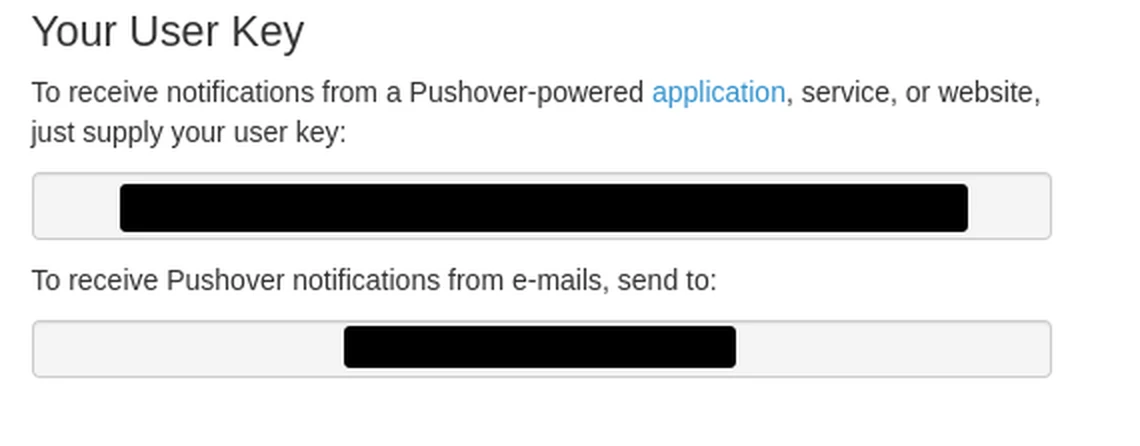
Sign in to your account on pushover.net. The key shown under Your User Key is the User key to enter in Link’nX.
-
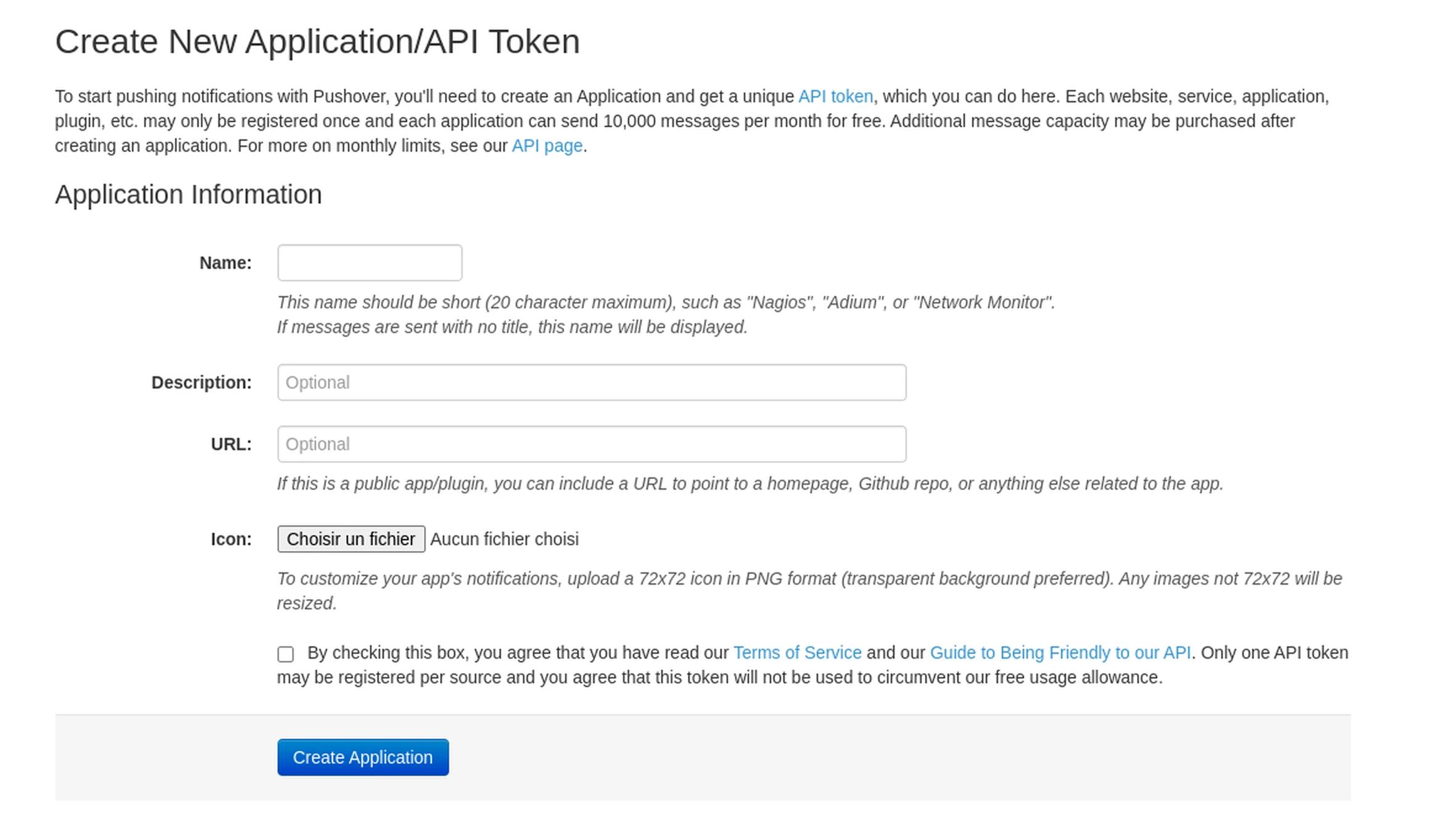
In Your Applications, click Create an Application/API Token.
-
Fill in Name, for example “Link’nX”, check the box accepting the terms, then click Create Application.
-
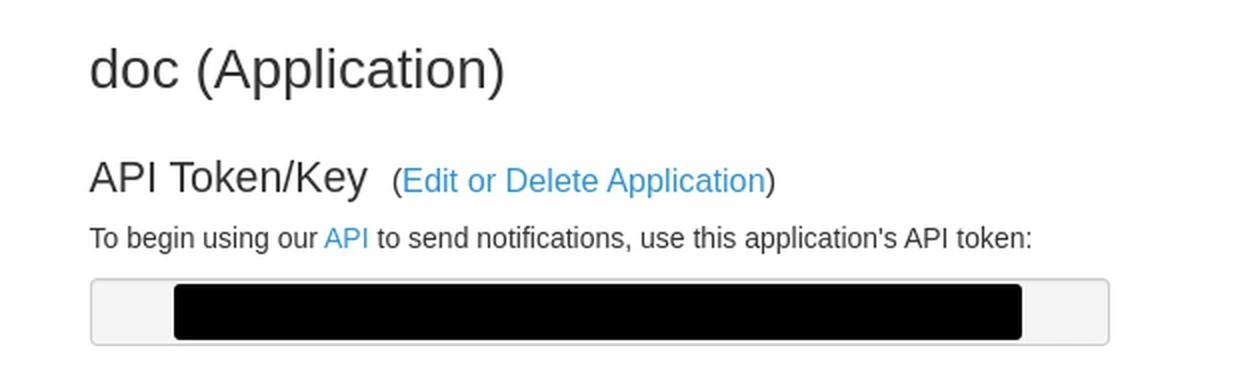
The page of the created application shows API Token/Key: this is the API key to enter in Link’nX.
Declare the account
Section titled “Declare the account”- Select the project and the gateway in Link’nX.
- Open Other → Pushover in the device navigation, or search for Pushover. On a small screen, first open the navigation.
- Click Add. The Pushover account declaration form opens.
- Fill in Name, required, 64 characters maximum, for example
Fictitious notifications. - Fill in User key, then API key, noted on pushover.net. Both fields are required and are not interchangeable. Do not use a key from another service.
- Click the floppy disk at the bottom right and wait for Success!. The account appears in the list.
The keys may remain visible while you enter or edit them. Never share them by e-mail or in an unmasked screenshot.
Edit or delete the account
Section titled “Edit or delete the account”- Click the Edit pencil on the row. The form is then titled Pushover account modification.
- Change the relevant fields, save with the floppy disk, then review the values.
If you leave a modified form without saving it, a confirmation appears: read it before confirming.
In the list, the Delete trash can opens a confirmation, described in the lists and confirmations guide. First check the actions that use this account. Removing the declaration from Link’nX neither revokes the key with the provider nor cancels notifications already sent.
Check the result
Section titled “Check the result”- Click the Edit pencil on the row to review the name and check that the expected settings are present.
- Success! confirms that the declaration is saved in Link’nX, not that Pushover accepts the keys or that a phone receives messages. To test sending, prepare an action with its text and recipient accounts, run it from a scenario and check delivery in the Pushover app.
Troubleshooting
Section titled “Troubleshooting”- The floppy disk stays disabled: check Name, User key and API key.
- The Pushover entry is missing from the navigation: follow the context and options check.
- The account is saved but no notification arrives: check the action, its text and its use by the scenario before changing the keys.
If these checks have already been done, contact support@can-nx.com with the context and the symptom, without attaching the keys.
French labels: Autre → Pushover, Ajouter, Déclaration d’un compte Pushover, Nom, Clé utilisateur, Clé d’API, Succès !, Modification d’un compte Pushover and Éditer.