Hikvision Alarm Server: send camera events to Link’nX
Link’nXAdministratorInstaller
Hikvision web interface and the Link’nX configuration helper, for a declared camera
For a Link’nX scenario to react to motion, an intrusion or a face detected by a Hikvision camera, the camera must send its events to Link’nX over HTTP. The help built into Link’nX shows the two settings to make in the Hikvision interface: the event destination, then the Notify Surveillance Center checkbox of each event to process.
For the authorized installer or administrator. Once the transmission is in place, prepare the trigger in Link’nX.
Before you start
Section titled “Before you start”- The camera is declared in Link’nX.
- The expected events are available and configured on the relevant Hikvision model. The camera’s account, zones, rules and thresholds are separate from the trigger prepared in Link’nX.
- The help recommends fixed IP addresses for the camera and Link’nX: after a power cut, for example, the devices then keep their address and the configuration remains valid. Have the installer prepare this network configuration if it is not already established.
Open the configuration helper in Link’nX
Section titled “Open the configuration helper in Link’nX”- In the right project and the right gateway, open Devices → Security & Access → Hikvision.
- Click How to configure HIK device, next to Add. The HIKvision configuration helper screen opens.
- Go through the three steps with Next and Back. On a narrow screen, the steps are arranged vertically. Reset, at the last step, returns to the beginning of this help; this button does not reset the camera.
The help shows an English variant of the Hikvision interface. If your screen does not match it, do not reproduce menus at random: contact support with the model, the version and the step concerned.
Set Link’nX as the event destination
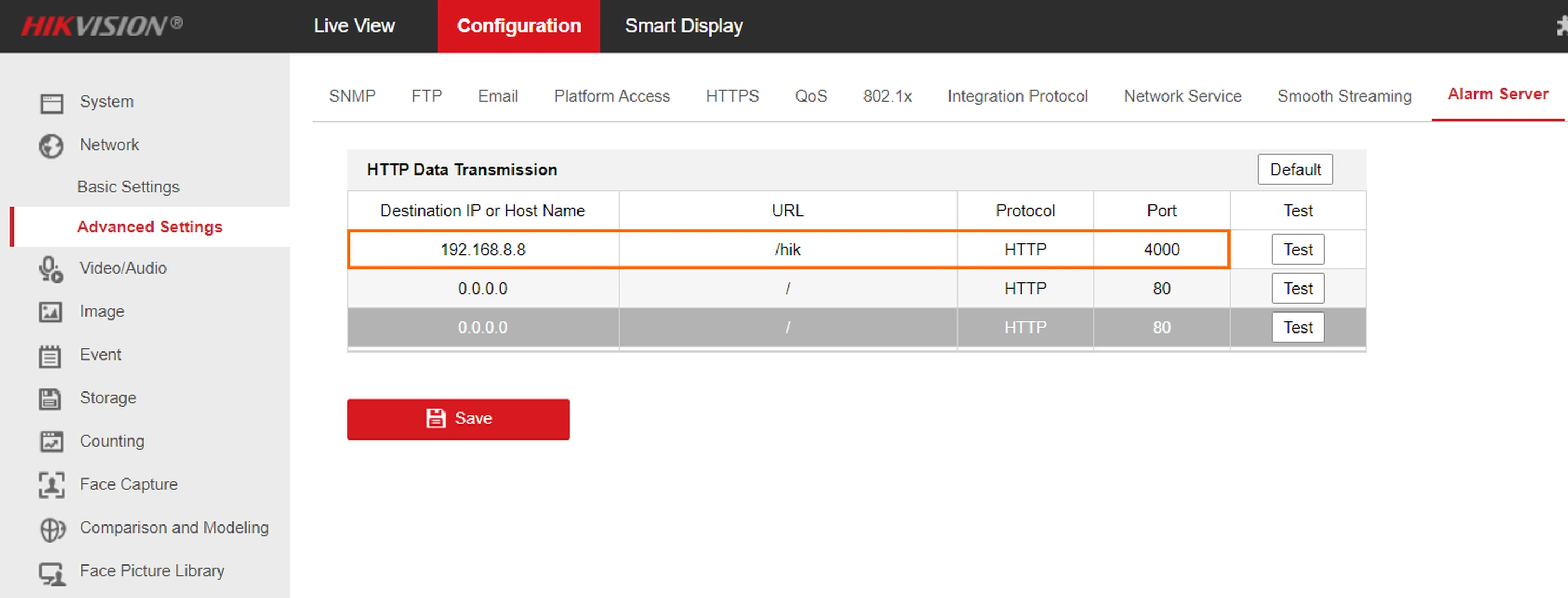
Section titled “Set Link’nX as the event destination”In the illustrated variant, the path is Configuration → Network → Advanced Settings → Alarm Server, then HTTP Data Transmission.
-
For the intended destination, fill in Destination IP or Host Name with the address of your Link’nX. The address visible in the illustration is not to be copied as is.
-
Fill in URL with /hik. The illustrated protocol is HTTP and the Port indicated by the help is 4000. If the installation uses another port, have its value confirmed before changing this setting.
-
Click Save on this Hikvision page.
Enable Notify Surveillance Center for each event
Section titled “Enable Notify Surveillance Center for each event”For each event to process, the help shows the Notify Surveillance Center checkbox in Linkage Method. Its French titles refer to Avertir centre de surveillance and its text to Activer centre de surveillance, in the Méthode de liaison tab: look for the box illustrated in the English variant.
| Help example | Path in the illustrated variant |
|---|---|
| Motion detection | Configuration → Event → Basic Event → Motion Detection → Linkage Method |
| Face comparison | Configuration → Comparison and Modeling → Face Comparison and Modeling → Linkage Method |
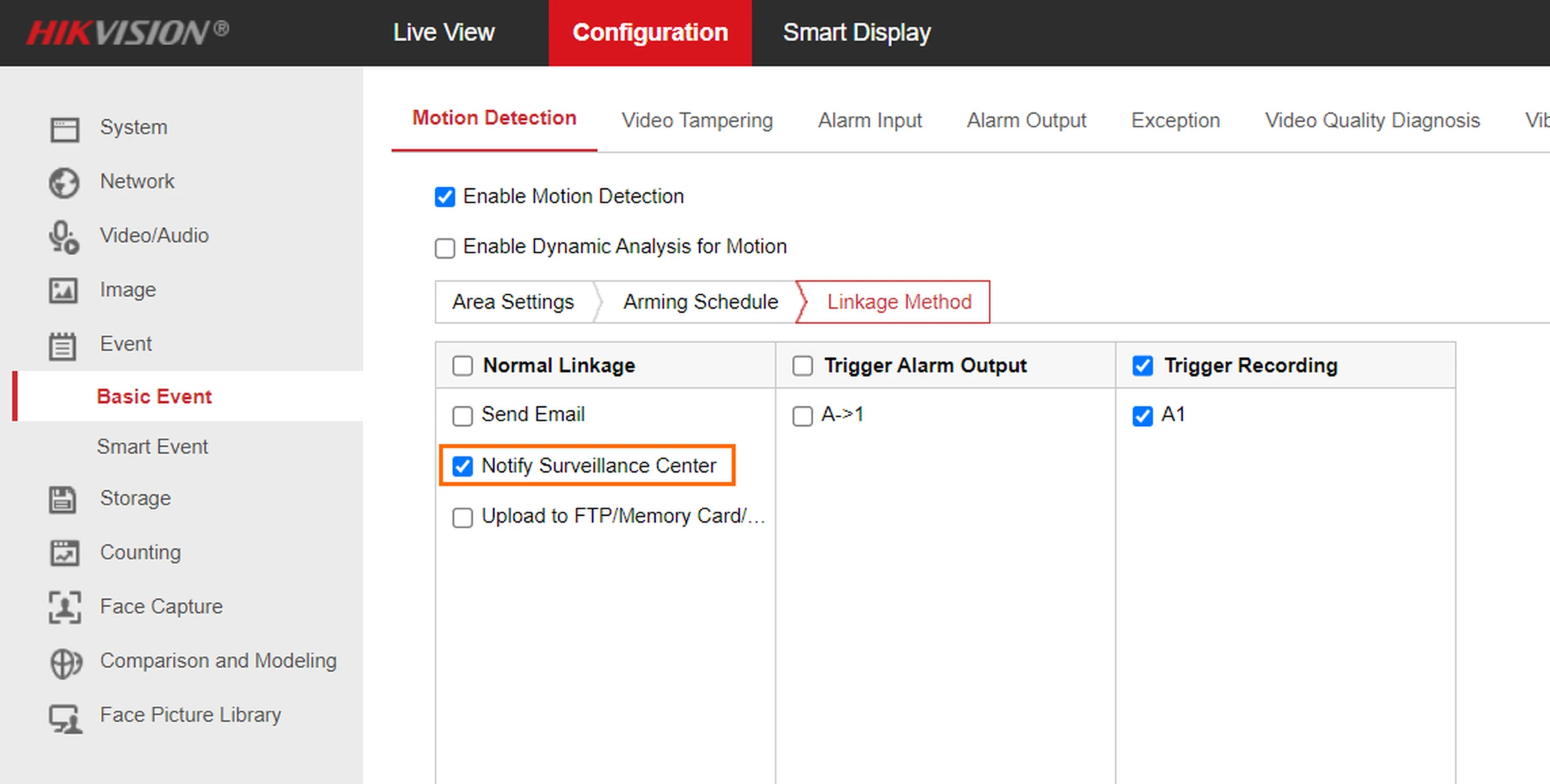
Both examples show the same Notify Surveillance Center choice. The other boxes, thresholds, libraries and values visible in the illustrations are not universal settings to copy: creating these rules and validating them finally depend on the Hikvision interface of your model.
Check the result
Section titled “Check the result”- Reopen the HTTP Data Transmission page and check that the destination address, the URL and the port are kept.
- Check that the Notify Surveillance Center box remains checked for each event to process.
- Prepare the event’s trigger in Link’nX and associate it with the intended scenario.
- Trigger the event and watch the scenario react. The Test button, visible in the example, does not replace this test with a Link’nX scenario.
Troubleshooting
Section titled “Troubleshooting”- The camera is declared, but the scenario does not react: check the intended Link’nX destination address, URL and port, then the event transmission in the camera. Then check the right device, the event and the filters of the Link’nX trigger, its association with the scenario and the scenario’s activation.
- A mask command works, but no event arrives: commands go from Link’nX to the camera, whereas events depend on the transmission described here. Go through the settings above again.
- You do not know how to keep a change on the Hikvision screen, or the expected function is missing: contact support before continuing.
Contact support
Section titled “Contact support”If these checks have not helped, write to support@can-nx.com specifying the model and its version, the event, the blocking step, the scenario, the expected result and the tests done. A screenshot of the blocking step, without credentials or personal data, can help.
French labels: Comment configurer un appareil HIK, Aide à la configuration HIKvision, Suivant, Précédent, Reset.