Add a 2N intercom in Link’nX: HTTP API account and XML import
Link’nXAdministratorInstaller
Link’nX web: Security & Access devices, 2N intercom declaration
Declare a 2N intercom in Link’nX with its IPv4 address, an HTTP API account and the authentication methods of its switch and logging APIs. Importing its XML configuration prefills the declaration and provides the user list used by 2N actions and triggers.
Intended for the authorized installer or administrator.
Before you start
Section titled “Before you start”- The intercom’s IPv4 address and access to its web interface.
- The HTTP API account intended on this intercom and its password.
- The authentication methods configured on the intercom for the switch function and for event logging.
- To prefill the declaration, the XML configuration exported from this intercom.
Prepare the 2N intercom
Section titled “Prepare the 2N intercom”Link’nX controls the intercom and receives its events through the 2N HTTP API. Enter the intercom’s IP address in a browser, sign in to its web interface, then open Services → HTTP API. The labels quoted are those of the English 2N interface.
-
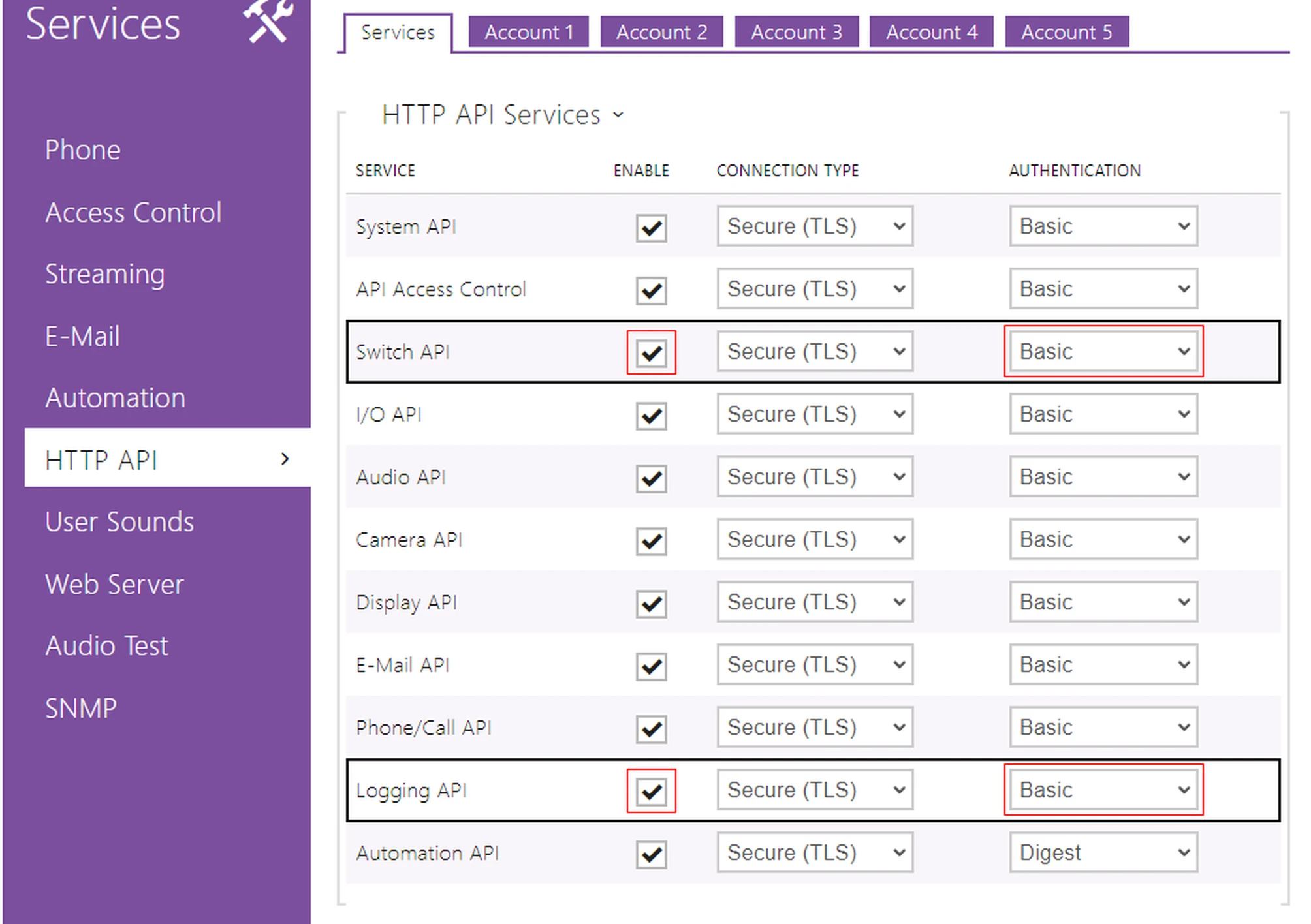
In the Services tab, check Enable for Switch API, which lets Link’nX control the switches, and for Logging API, which sends it the events: code entered, call, door opening, and so on.
-
For each of these two services, note the method chosen in Authentication: None, Basic or Digest. The Link’nX declaration must state the same method for each service; otherwise, Link’nX cannot communicate with the intercom.
-
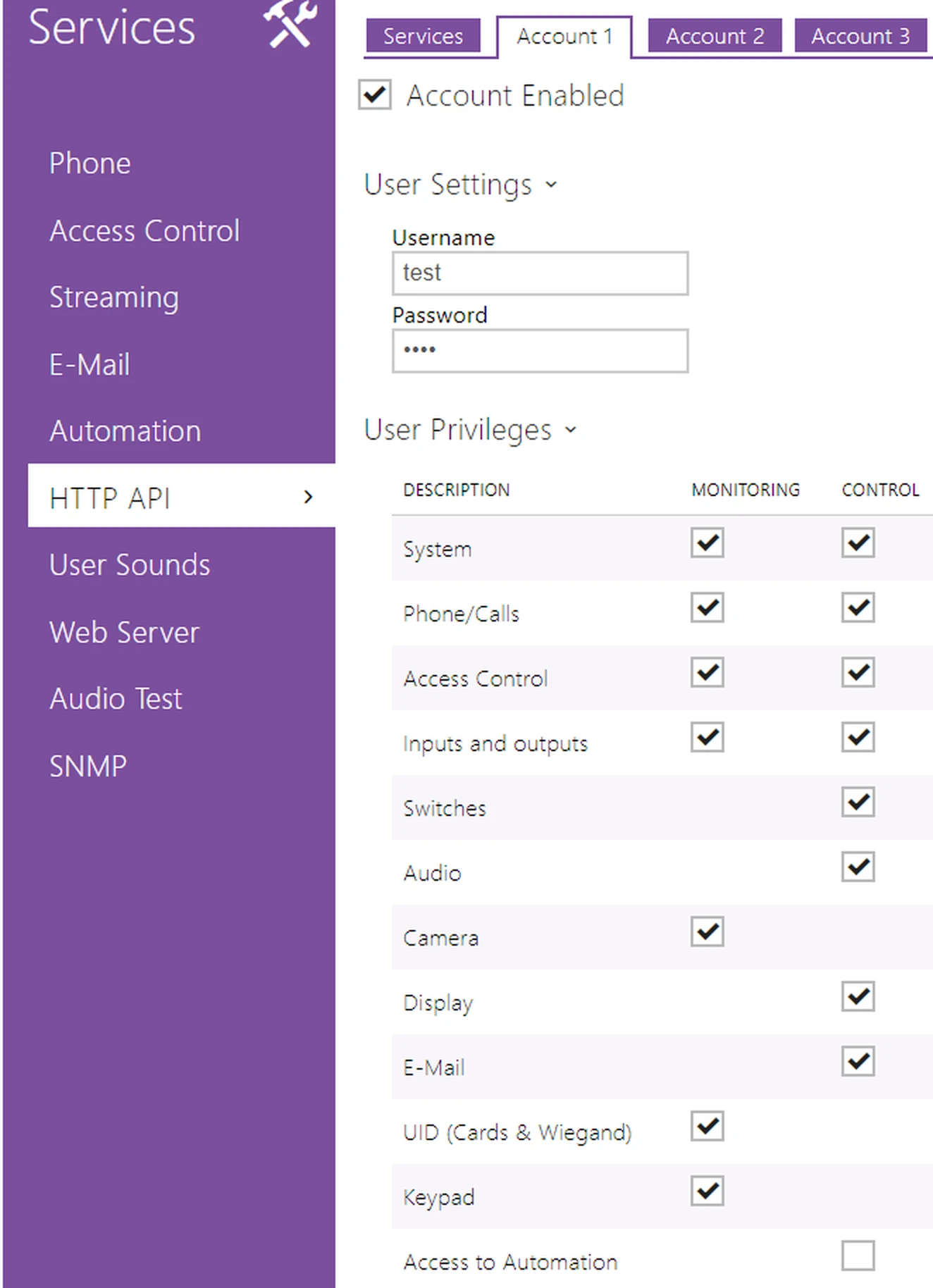
In an Account tab, check Account Enabled, fill in Username and Password under User Settings, then under User Privileges check the rights for the functions Link’nX uses. This account is the one you will declare in Link’nX.
-
To prefill the declaration, export the intercom’s configuration from System → Maintenance → Back Up configuration. The resulting XML file is imported in the Link’nX form.
Open the declaration form
Section titled “Open the declaration form”- In Link’nX, check the project and the gateway. Open Devices → Security & Access → 2N, or search for 2N in Search a device…. On mobile, first open the three-line menu. The navigation guide covers missing or locked cards.
- Click Add. The 2N Declaration screen opens.
- If you have the XML configuration, import it first, then complete the fields. Otherwise, fill in the connection directly.
Import the XML configuration
Section titled “Import the XML configuration”- Click Import configuration, at the bottom of the form, then select the .xml file of the intercom concerned.
- Check the file name displayed, then review Name, IP address and the two authentication methods. The import may replace values already entered, including a custom name.
- Check or select Username from the available suggestions, then fill in Password: the file does not on its own fill in all the required fields.
- Save the declaration with the floppy disk once the connection is complete (next section). A file imported without saving is not kept in Link’nX.
The users taken from the file are then offered in the filters of this device’s 2N events. The import prepares the Link’nX declaration; it is not a restore procedure for the 2N intercom. The file may contain names and access data: import it only in this form.
Fill in the connection and save
Section titled “Fill in the connection and save”| Field | Expected entry |
|---|---|
| Name | Name used to find the intercom, required and limited to 64 characters. Fictitious example: “Reception 2N”. |
| IP address | Actual IPv4 address of the intercom. An empty or malformed address prevents saving; the example in the field is not the one for your installation. |
| Username | HTTP API account intended on this intercom. Suggestions may appear after importing the configuration. |
| Password | Password of this account, to be entered in the interface only. |
| Switch API authentication method | None, Basic or Digest, depending on how this function is configured in the intercom. |
| Logging API authentication method | None, Basic or Digest, depending on how event reception is configured. This setting is separate from the previous one. |
All these fields are required. Do not choose None to work around an authentication failure; have the intended mode confirmed if you do not know it.
Then click the floppy disk at the bottom right and wait for Success! and the return to the list.
Check the result
Section titled “Check the result”- Find the row by Name, IP address and Username, then click its Edit pencil.
- In 2N Modification, review the saved settings.
- Then test the intercom with 2N actions and triggers: a switch command validates the intercom’s response and the switch API, a received event validates the logging API. Test both, because each API has its own authentication.
Edit or delete the declaration
Section titled “Edit or delete the declaration”- If you change Password, the Confirm password field appears: enter the same new value in both fields. Passwords do not match asks you to correct this confirmation. Save with the floppy disk and wait for Updated!, then review the declaration.
- To abandon a change, leave the form; in Unsaved changes, Cancel stays on the page and Don’t save discards the changes.
- Before deleting the declaration, have the actions and scenarios that use it checked. If the consequences are uncertain, contact support before deleting.
Troubleshooting
Section titled “Troubleshooting”- The floppy disk stays grayed out: check the required fields, the IPv4 format and, after a password change, its confirmation. Check the two authentication methods separately.
- The file is selected, but expected values or users are missing: check that it is the right export and the right intercom, then the fields actually filled in. The file name and the configuration icon show that a file was imported, not that all its data was taken over. Do not modify the XML at random.
- No commands and no events: in the 2N interface, check that Switch API and Logging API are checked, that their authentication method matches the declaration and that the account is enabled with the necessary privileges.
- Commands work, but events do not: check Logging API in the intercom, then review the Logging API authentication method and the trigger filters.
Contact support
Section titled “Contact support”If the problem persists after these checks, write to support@can-nx.com stating the intercom model, the project and gateway, the goal, the result displayed and the steps carried out. Do not attach a file containing sensitive data and never send the password.
French labels: 2N → Ajouter → Déclaration d’un 2N, Nom, Adresse IP, Nom utilisateur, Mot de passe, Méthode d’authentification de l’API d’interrupteur, Méthode d’authentification de l’API d’enregistrement, Importer une configuration, then Modification du 2N, Éditer and Confirmer le mot de passe.