Activate a Can’nX license: enter the serial key in the project
nX platformAdministratorInstaller
Can’nX Cloud: project options, after buying a license on the Can’nX shop
A license purchased on the Can’nX shop, for example for a Link’nX integration such as Sonos, Nuki or 2N, is activated by adding its serial key to the project in Can’nX Cloud (can-nx.cloud). It then applies to the project that contains the gateway.
Intended for the administrator or installer who manages the project in Can’nX Cloud. To understand the padlock on a Link’nX card, see the Link’nX navigation guide.
Before you start
Section titled “Before you start”- You have access to the can-nx.shop account used for the purchase.
- Your Can’nX Cloud account shows the project’s Options button. Without this button, ask the person in charge of the project to activate the license.
Find the serial key
Section titled “Find the serial key”The shop labels below are those of its French pages, followed by their meaning.
-
Sign in to your account on can-nx.shop.
-
In Votre compte (Your account), open CLÉS DE SÉRIE (serial keys).
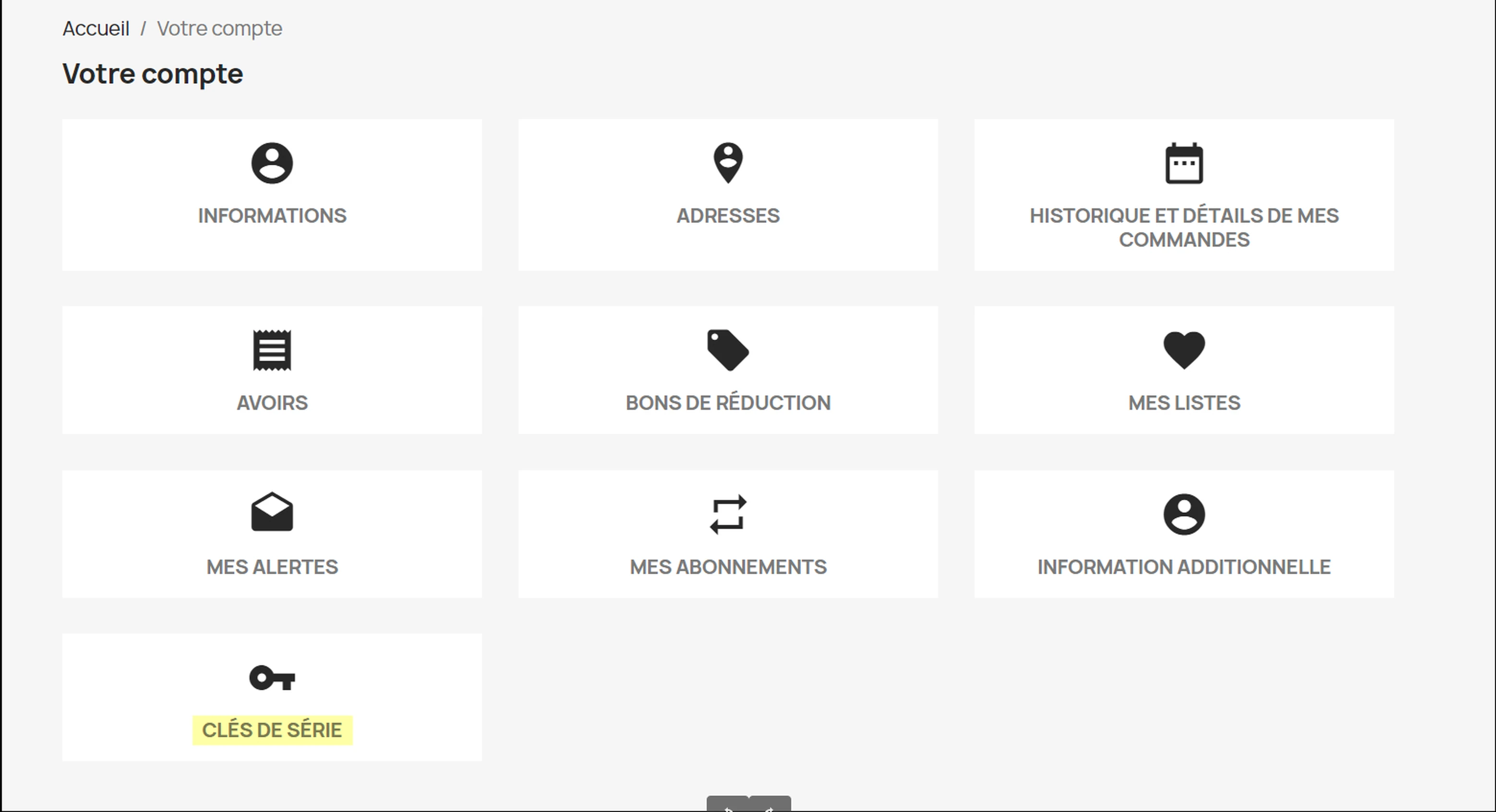
-
Locate the license by Nom du produit (product name) and Réf de commande (order reference), then copy its value in the Clés de série (serial keys) column. The État de la clé (key status) column shows whether it has already been activated.
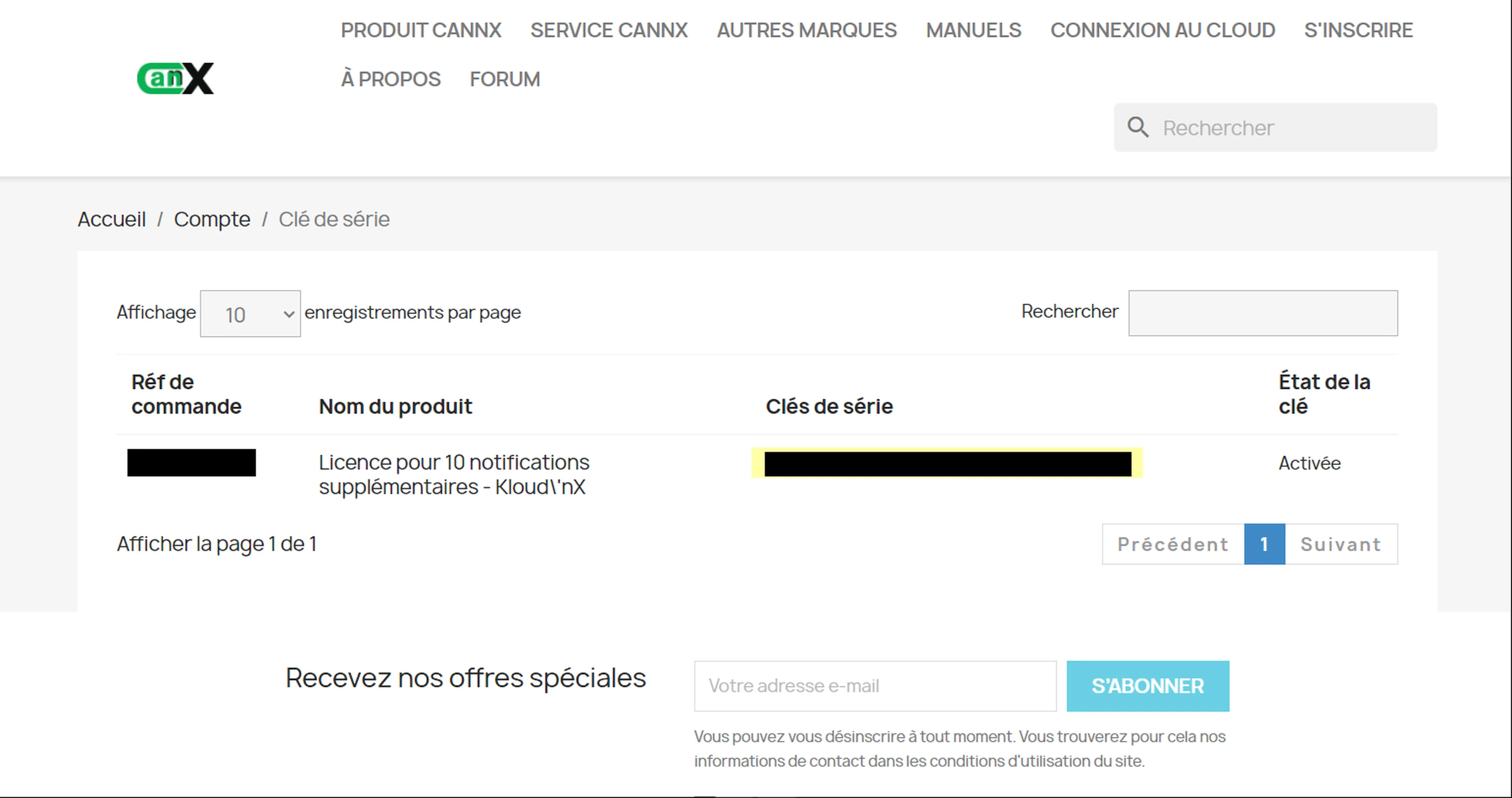
Keep the key confidential and hide it on any screenshot.
Add the license to the project
Section titled “Add the license to the project”- In Can’nX Cloud, open the project that contains the gateway concerned.
- Click Options, then Add an extension.
- In the Register a licence window, paste the key into Key, then click Confirm.
- The Confirmation window shows “Use the licence … for the project …”, with the license type and the project name. Check them, then click Confirm. Cancel closes the window without applying the license.
- Wait for the Success! message.
Check the result
Section titled “Check the result”Open Link’nX on a gateway of the project: the card of the purchased integration should no longer show a padlock. You can then declare the device following the integration’s guide.
Troubleshooting
Section titled “Troubleshooting”| Message or symptom | Action |
|---|---|
| Serial Key not found | Copy the key again from CLÉS DE SÉRIE, without any added space, then try again. |
| An error has occurred | Check the open project, then try again once. If the message comes back, contact support. |
| Options button missing | Your account does not have the necessary rights on this project: ask the person in charge of the project to activate the license. |
| The card keeps its padlock | Check that the license was applied to the project that contains the gateway open in Link’nX, then follow the navigation guide. |
Contact support
Section titled “Contact support”For a key you cannot find in your account, a license applied to the wrong project or a transfer, write to support@can-nx.com stating the order reference, the product and the project name. Do not include the serial key in your message.
French labels: Options, Ajouter une extension, Enregistrer une licence, Clé, Confirmer, Annuler, Opération réussie !, Clé non trouvée and Une erreur est survenue.